Fuwari is an Astro-based static blog template that developers like for its clean design and fast output. Comments are the usual weak spot. A conventional comment system often brings a backend and a database, which works against the simplicity of a static site. Giscus takes a different route: it keeps discussions in GitHub Discussions, needs no database, and can follow the page's light or dark theme. This walkthrough adds that setup to Fuwari.
Prepare a public GitHub repository for comments
Giscus reads and writes comments through GitHub Discussions, so start with a public repository dedicated to that purpose. The repository must be public because Giscus accesses it when loading and submitting comments.
-
Create the repository - Sign in to GitHub and open the + menu in the upper-right corner. - Choose New repository. - Give it a name such as
fuwari-commentsand fill in any other required details. - Set visibility to Public. -
Enable Discussions - Open the repository's Settings → Features. - Find Discussions, check it, and click Save changes. - Discussions is GitHub's discussion area for projects; Giscus uses it as the comment store.
Configure Giscus
Next, connect Giscus to the repository.
- Connect the repository - Go to https://giscus.app/zh-CN. - Pick a language, then enter your repository in the field below. - Once the check passes, the Discussion connection is tied to that repository.

- Choose a mapping
pathnameis a good default. If a post lives atposts/helloworld, keeping that path unchanged keeps the same discussion matched to the page.
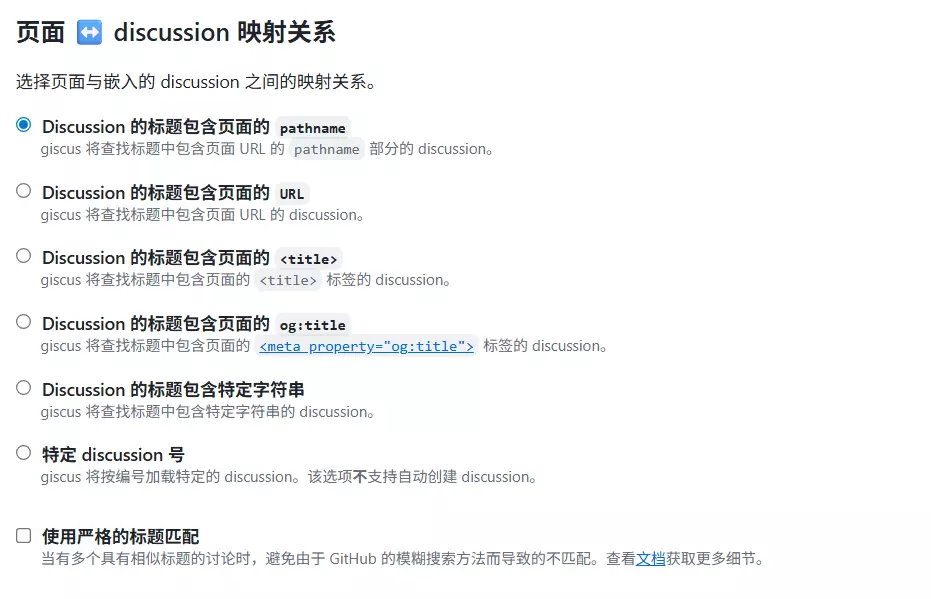
- Choose a Discussion category The Announcements category is recommended. It keeps new discussions creatable only by repository maintainers and Giscus.

- Save the configuration values After these steps, note the following for Fuwari: - repository name - repository ID - category name - category ID
Add Giscus to Fuwari
- Create the Giscus component
To make Giscus render correctly in both light and dark mode, create src/components/misc/Giscus.astro with the following content:
---
interface Props {
  repo: string;
  repoId: string;
  category: string;
  categoryId: string;
  mapping?: string;
  reactionsEnabled?: boolean;
  emitMetadata?: boolean;
  inputPosition?: 'top' | 'bottom';
  lang?: string;
}

const {
  repo,
  repoId,
  category,
  categoryId,
  mapping = 'pathname',
  reactionsEnabled = true,
  emitMetadata = false,
  inputPosition = 'bottom',
  lang = 'zh-CN'
} = Astro.props;
---

<div id="giscus-container"></div>

<script define:vars={{ repo, repoId, category, categoryId, mapping, reactionsEnabled, emitMetadata, inputPosition, lang }}>
function loadGiscus() {
  const container = document.getElementById('giscus-container');
  if (!container) return;

  const isDark = document.documentElement.classList.contains('dark');
  const theme = isDark ? 'dark' : 'light';

  const script = document.createElement('script');
  script.src = 'https://giscus.app/client.js';
  script.setAttribute('data-repo', repo);
  script.setAttribute('data-repo-id', repoId);
  script.setAttribute('data-category', category);
  script.setAttribute('data-category-id', categoryId);
  script.setAttribute('data-mapping', mapping);
  script.setAttribute('data-strict', '0');
  script.setAttribute('data-reactions-enabled', reactionsEnabled ? '1' : '0');
  script.setAttribute('data-emit-metadata', emitMetadata ? '1' : '0');
  script.setAttribute('data-input-position', inputPosition);
  script.setAttribute('data-theme', theme);
  script.setAttribute('data-lang', lang);
  script.setAttribute('data-loading', 'lazy');
  script.crossOrigin = 'anonymous';
  script.async = true;

  container.appendChild(script);
}

// Watch for theme changes
function updateGiscusTheme() {
  const giscusFrame = document.querySelector('iframe[src*="giscus"]');
  if (giscusFrame) {
    const isDark = document.documentElement.classList.contains('dark');
    const theme = isDark ? 'dark' : 'light';

    giscusFrame.contentWindow.postMessage({
      giscus: {
        setConfig: {
          theme: theme
        }
      }
    }, 'https://giscus.app');
  }
}

// Observe DOM changes to detect theme switches
const observer = new MutationObserver((mutations) => {
  mutations.forEach((mutation) => {
    if (mutation.type === 'attributes' && mutation.attributeName === 'class') {
      updateGiscusTheme();
    }
  });
});

// Initialize on page load
if (document.readyState === 'loading') {
  document.addEventListener('DOMContentLoaded', loadGiscus);
} else {
  loadGiscus();
}

// Start observing theme changes
observer.observe(document.documentElement, {
  attributes: true,
  attributeFilter: ['class']
});
</script>
- Insert the component into post pages
In src/pages/posts/[...slug].astro, first import the component:
import path from "node:path";
import License from "@components/misc/License.astro";
import Markdown from "@components/misc/Markdown.astro";
import AISummary from "@components/misc/AISummary.astro";
import Giscus from "../../components/misc/Giscus.astro";
import I18nKey from "@i18n/i18nKey";
import { i18n } from "@i18n/translation";
import MainGridLayout from "@layouts/MainGridLayout.astro";
import { getSortedPosts } from "@utils/content-utils";
import { getDir, getPostUrlById } from "@utils/url-utils";
import { Icon } from "astro-icon/components";
import { licenseConfig } from "src/config";
import ImageWrapper from "../../components/misc/ImageWrapper.astro";
import PostMetadata from "../../components/PostMeta.astro";
import { profileConfig, siteConfig } from "../../config";
import { formatDateToYYYYMMDD } from "../../utils/date-utils";
Then place the Giscus component after the license component:
<!-- always show cover as long as it has one -->

{entry.data.image &&
<ImageWrapper id="post-cover" src={entry.data.image} basePath={path.join("content/posts/", getDir(entry.id))} class="mb-8 rounded-xl banner-container onload-animation"/>
}

<Markdown class="mb-6 markdown-content onload-animation">
<Content />
</Markdown>

{licenseConfig.enable && <License title={entry.data.title} slug={entry.slug} pubDate={entry.data.published} class="mb-6 rounded-xl license-container onload-animation"></License>}

<Giscus
repo="username/repo"
repoId=""
category="Announcements"
categoryId=""
/>
<br>
</div>
</div>
After saving, rebuild the project and the comment area should appear.
With those steps, Fuwari has a working comment system backed by GitHub Discussions. 🎉