Parallax sites are everywhere: as you scroll, layers scale, rotate, and slide at different rates. The page's visual structure changes with scroll position, while the actual content—text, small images—still moves up and down in the usual way. That combination can look great, but it is also a performance trap. Browsers are optimized for the common case where scrolling reveals new content at the top or bottom of the viewport. When large visible areas are continuously transformed, the browser may end up repainting most of the page.
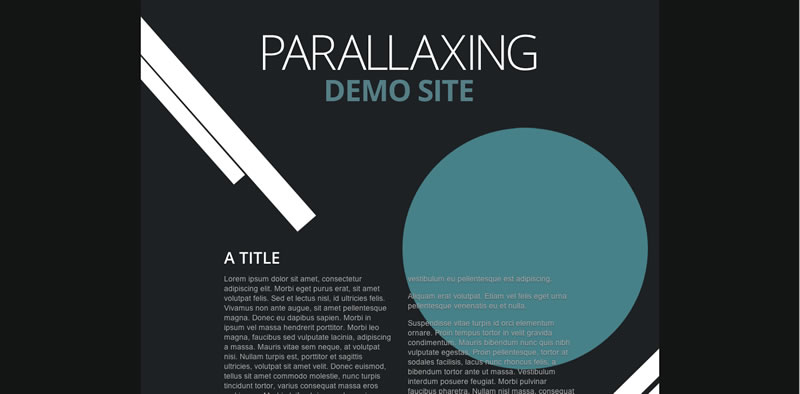
To hit 60fps, everything in a frame has to fit inside roughly 16ms. If each scroll event immediately updates the view, several events can fire in one frame and each may force layout or paint work. requestAnimationFrame is a better fit: the scroll handler only records the latest scroll position, and the visual update runs once per frame. That helps, but it doesn't automatically solve the underlying rendering cost. The approaches below trade off control, compatibility, and compositing work in different ways.
Absolute positioning and the paint problem
The default approach is a pile of absolutely positioned DOM elements. Every scroll event transforms them into new positions. With the DevTools timeline in frame mode, scrolling shows large full-screen paints and multiple layout operations triggered inside a single frame.
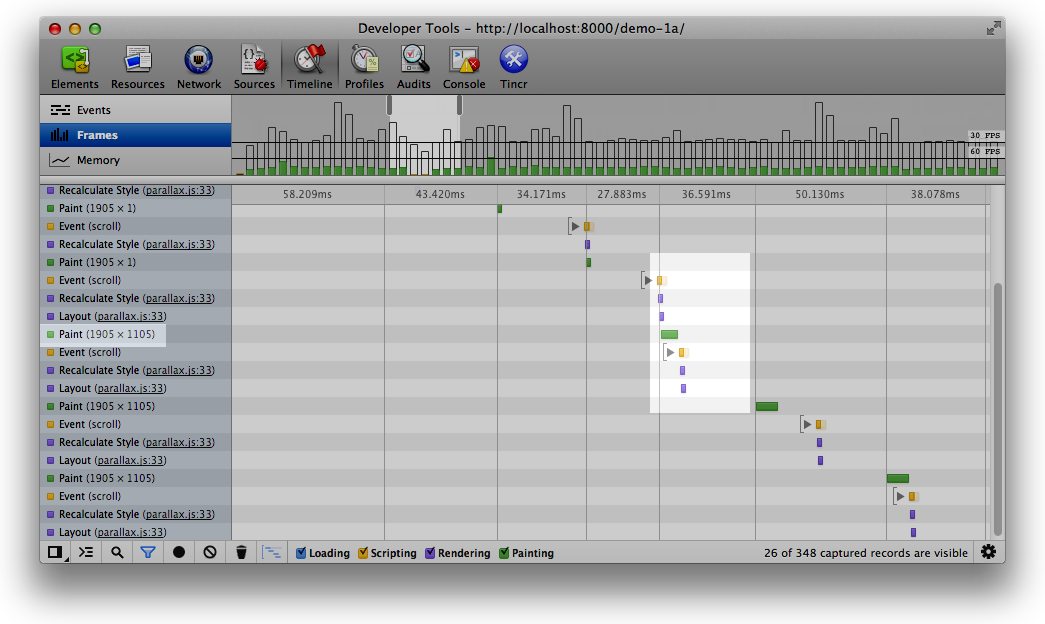
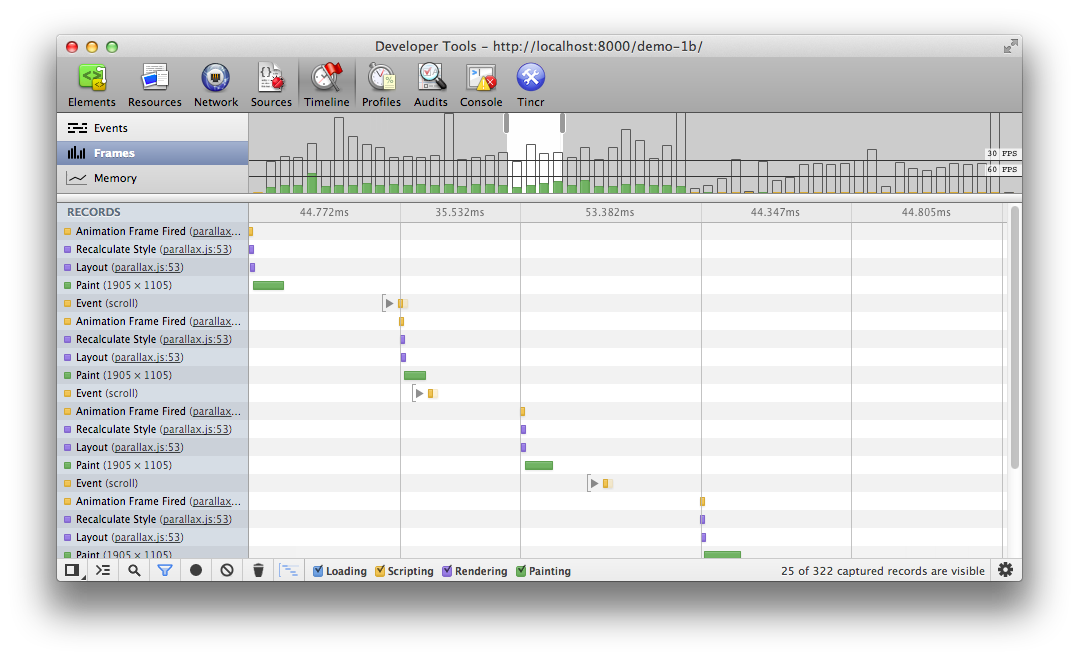
The first fix is to move the visual updates out of the scroll handler and into requestAnimationFrame. The scroll listener just stores the latest value; the rAF callback uses it to update the view. This limits layout work to once per frame, though the improvement may be subtle because layout is not always expensive. The bigger issue remains: the page is essentially one layer. Moving elements around inside that layer causes large repaints, and painting is a blocking operation—the browser cannot do other work while it paints. It is easy to blow the 16ms budget.
3D transforms and layer creation
Instead of absolute positioning alone, you can apply 3D transforms to elements. In WebKit-based browsers this often promotes the transformed element to its own layer and can hand movement and compositing to the GPU. The element can be transformed without repainting its layer; the GPU moves the layers and composites the final page.
A demo using 3D transforms shows a large improvement. But the widely used -webkit-transform: translateZ(0); trick comes with caveats. It is not cross-browser compatible. It forces the browser to create a new layer for every element it is applied to, and many layers can become a performance bottleneck of their own, so use it sparingly. Some WebKit ports also disable it. Ideally, 2D transforms would get the same rendering treatment as 3D transforms; browsers are moving in that direction, but you cannot assume it yet.
There is also a more basic rule: avoid painting any element that you could simply move. A common parallax pattern keeps a div's height fixed and animates its background position. That requires a repaint on every movement. A better option is to create the moving element—wrapped in an overflow: hidden container if needed—and translate it.
Fixed canvas or WebGL
A third option is a fixed-position canvas at the bottom of the page, with all transformed graphics drawn into it. At first this sounds like overkill, but it has real advantages. There is only one canvas element, so there is no pile of layers to composite. The canvas is a large bitmap that can be hardware-accelerated. The Canvas2D API handles the transformations you need, and the drawing code is relatively easy to develop and maintain.
This approach gives you one new layer instead of one layer per transformed element. It also tends to be the most cross-browser-friendly option. In the demo, the implementation simply uses drawImage to place a background and several blobs at the correct screen positions:
/**
 * Updates and draws in the underlying visual elements to the canvas.
 */
function updateElements () {

  var relativeY = lastScrollY / h;

  // Fill the canvas up
  context.fillStyle = "#1e2124";
  context.fillRect(0, 0, canvas.width, canvas.height);

  // Draw the background
  context.drawImage(bg, 0, pos(0, -3600, relativeY, 0));

  // Draw each of the blobs in turn
  context.drawImage(blob1, 484, pos(254, -4400, relativeY, 0));
  context.drawImage(blob2, 84, pos(954, -5400, relativeY, 0));
  context.drawImage(blob3, 584, pos(1054, -3900, relativeY, 0));
  context.drawImage(blob4, 44, pos(1400, -6900, relativeY, 0));
  context.drawImage(blob5, -40, pos(1730, -5900, relativeY, 0));
  context.drawImage(blob6, 325, pos(2860, -7900, relativeY, 0));
  context.drawImage(blob7, 725, pos(2550, -4900, relativeY, 0));
  context.drawImage(blob8, 570, pos(2300, -3700, relativeY, 0));
  context.drawImage(blob9, 640, pos(3700, -9000, relativeY, 0));

  // Allow another rAF call to be scheduled
  ticking = false;
}

/**
 * Calculates a relative disposition given the page’s scroll
 * range normalized from 0 to 1
 * @param {number} base The starting value.
 * @param {number} range The amount of pixels it can move.
 * @param {number} relY The normalized scroll value.
 * @param {number} offset A base normalized value from which to start the scroll behavior.
 * @returns {number} The updated position value.
 */
function pos(base, range, relY, offset) {
  return base + limit(0, 1, relY - offset) * range;
}

/**
 * Clamps a number to a range.
 * @param {number} min The minimum value.
 * @param {number} max The maximum value.
 * @param {number} value The value to limit.
 * @returns {number} The clamped value.
 */
function limit(min, max, value) {
  return Math.max(min, Math.min(max, value));
}
Canvas works well for large images and other elements that are easy to draw. It becomes more challenging with large blocks of text. You can use fillText, but the text becomes a bitmap, which hurts accessibility, and you have to handle wrapping and other typographic details yourself. If you can avoid putting text in the canvas, you should; the DOM transform approaches above are likely a better fit.
There is no reason to stop at Canvas2D. WebGL offers the most direct path to the GPU and the best chance of maintaining 60fps, especially for complex effects. It may seem excessive or poorly supported, but with a library like Three.js you can keep one friendly API and fall back to canvas rendering. A feature check is enough to choose the renderer:
// check for WebGL support, otherwise switch to canvas
if (Modernizr.webgl) {
  renderer = new THREE.WebGLRenderer();
} else if (Modernizr.canvas) {
  renderer = new THREE.CanvasRenderer();
}
Then the Three.js API replaces direct context handling, and the same demo can support both renderers. If the page does not need many extra elements, a canvas can also be used as a background element in Firefox and WebKit-based browsers, but that is not universal, so use it carefully.
Pick for the conditions you actually have
Absolute positioning is popular mainly because of perceived support. That can be misleading: older target browsers may render it badly, and even modern browsers do not guarantee good performance with absolutely positioned elements. 3D transforms let you keep DOM elements and can reach good frame rates, provided you avoid painting during movement. Layer creation is a WebKit detail, not a cross-browser guarantee, so test before committing. If you target top-tier browsers and can render the site through canvas, canvas may be the best option; with Three.js you can switch renderers based on the support you need.
None of these choices is universal. The right approach depends on the design effect and the browsers you must support. And whatever you choose, don't guess: build it and test it.