The workflow I wanted was simple:
- On an iPhone, send a magnet link or eMule link to 115 for offline download. That part can be done directly through 115’s WeChat mini program.
- Move the finished files over to a QNAP NAS.
- Play them on the local network through Emby.
The tricky part is step two. The goal was to make the whole process work without a computer at all, so it could be done from a phone right after waking up, or while commuting on the subway or bus.
What I tried before
My earlier way of transferring files from 115 to QNAP relied on the Chrome extension 115Exporter. It can send download links from a 115 file listing page directly to Aria2, and with Aria2 deployed on the QNAP, the NAS handles the download.
That solution works, but only when using a computer. If everything needs to happen from a phone, a different approach is necessary.
Using CloudDrive on QNAP
One workable option is CloudDrive, a personally developed cloud-drive mounting tool. Running it in Docker on a QNAP lets you mount services such as 115, Tianyi Cloud, Baidu Netdisk, Aliyun Drive, or storage that supports WebDAV directly into the QNAP file system.
Once mounted, the cloud files become visible on the NAS like a normal folder. At that point, there are two practical ways to use them:
- stream the content directly in Emby, Plex, or similar apps;
- copy files from the mounted cloud folder into a local folder on the QNAP, which effectively saves your 115 files onto the NAS.
How to install it
1. Prepare folders in File Station
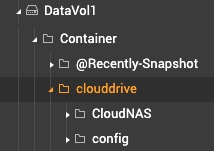
Open the QNAP admin panel, go to File Station, and create a folder or shared folder. Inside it, create two subfolders named config and cloudNAS.
My folder layout looked like this:
2. Create the container in Container Station
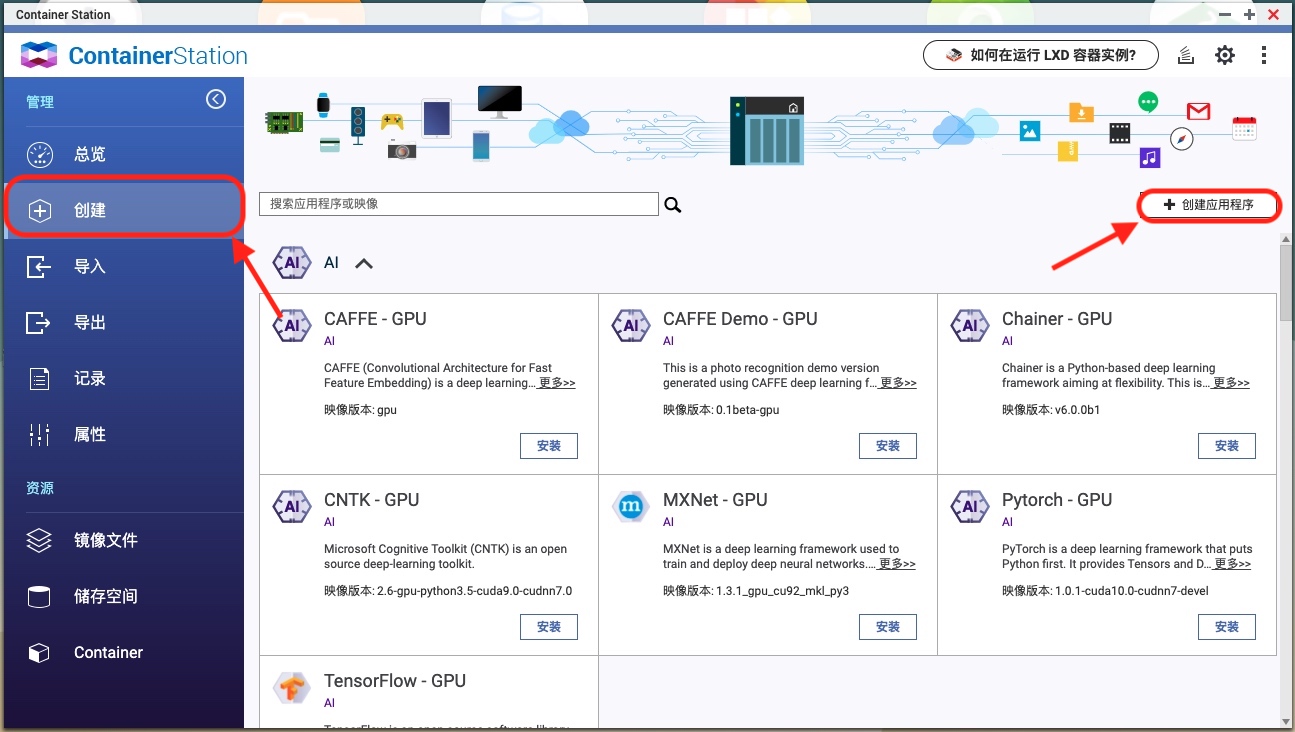
Open Container Station, click Create on the left, then choose Create Application on the right.
3. Use this application configuration
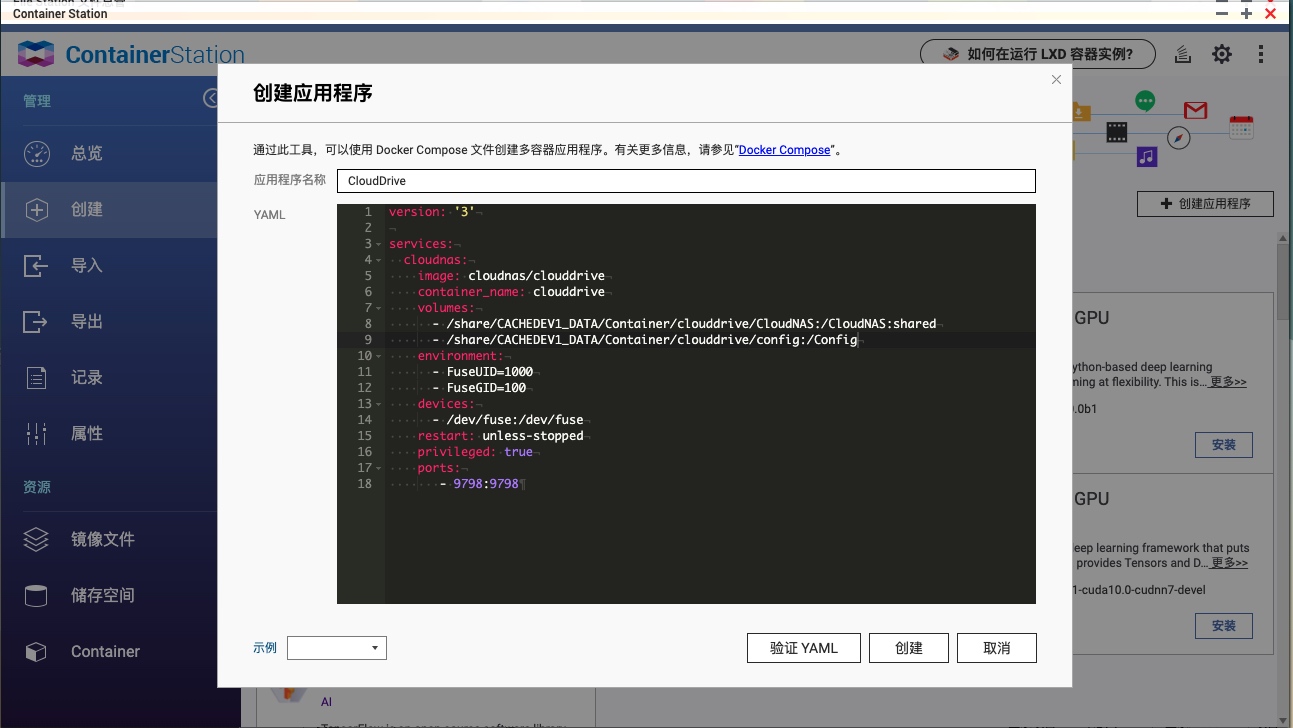
Set the application name to CloudDrive, then paste the following into the YAML field:
version: '3'

services:
  cloudnas:
    image: cloudnas/clouddrive
    container_name: clouddrive
    volumes:
      - /share/CACHEDEV1_DATA/Container/clouddrive/CloudNAS:/CloudNAS:shared
      - /share/CACHEDEV1_DATA/Container/clouddrive/config:/Config
    environment:
      - FuseUID=1000
      - FuseGID=100
    devices:
      - /dev/fuse:/dev/fuse
    restart: unless-stopped
    privileged: true
    ports:
       - 9798:9798
Under volumes, change the paths on the left side of each colon so they match the locations of the CloudNAS and config folders you created.
4. Start the app
Click Create and wait a few minutes for the download and deployment to finish. After that, open http://IP-address:9798 to access the management page.
5. Mount your 115 account
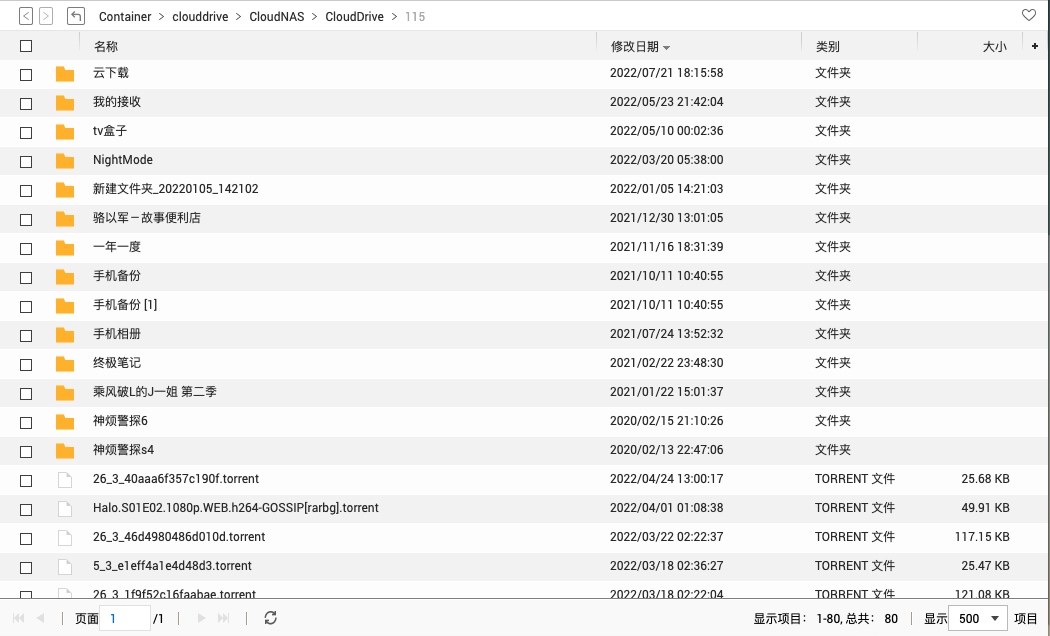
Register and sign in on the management page, then start mounting your cloud drive. For 115, both QR-code login and cookie login are supported. After signing in successfully, the files stored in 115 should appear inside the CloudNAS folder on the QNAP.
6. Play or copy the files
At this point, you can either:
- play videos from the mounted cloud drive directly with Plex or similar software;
- use Qfile on your phone to copy or move files into another local folder on the NAS.
That makes it possible to save 115 cloud files to QNAP entirely from a mobile device.
7. For true anywhere access
If the goal is to do this from outside your home network, you’ll also need something like frp or Zerotier so Qfile can be accessed remotely.
With that in place, the whole flow becomes much closer to the ideal: add resources to 115 from a phone, move them to QNAP, and later watch them through Emby on the local network.