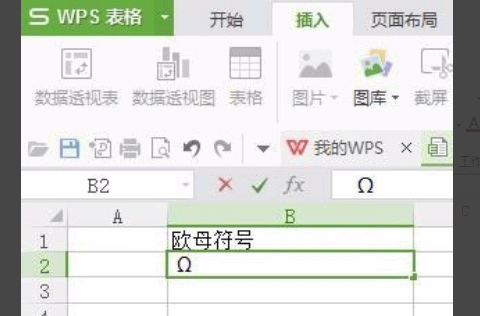
When working in a WPS document or spreadsheet, it’s pretty common to need a checkbox symbol with a tick inside it. There are a couple of simple ways to do it, and the same symbol set can also help if you need a boxed X. If you’re working in WPS Spreadsheets and need the ohm symbol, that can be inserted from the symbol menu as well.
Insert a checked box in WPS with a font shortcut
One of the fastest methods is to type a letter and then switch its font.
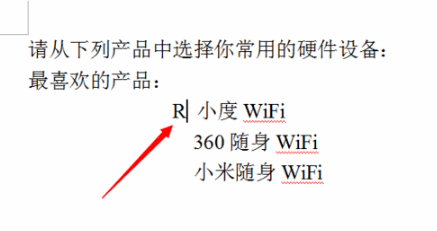
- Place the cursor where you want the checked box to appear, then type an uppercase R.
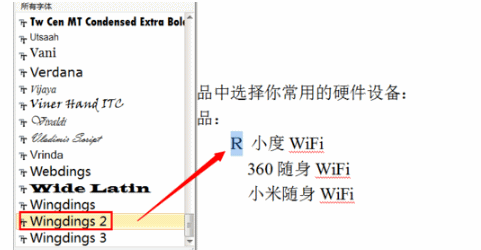
- Select that uppercase R and change its font to Wingdings 2.
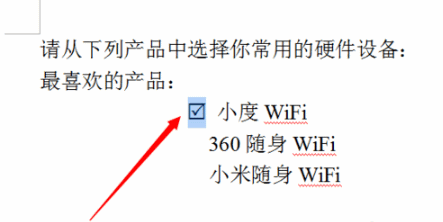
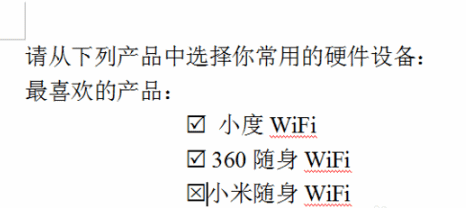
- After the font is changed, the character will display as a box with a check mark inside.
Insert the same symbol from the Symbol menu
If you’d rather pick the symbol directly, WPS also lets you insert it from the built-in symbol list.
- Click Insert and then open Symbol.
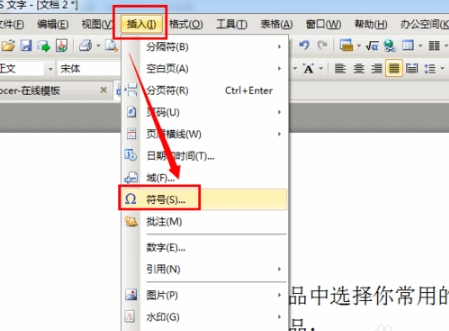
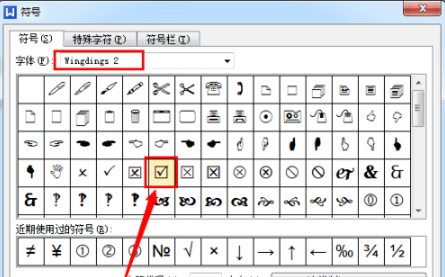
- In the window that opens, choose the Wingdings 2 font, find the checked box symbol, and click Insert.
How to insert a boxed X
If you need a box with an X inside instead of a check mark, the method is nearly the same:
- Type an uppercase S, then set its font to Wingdings 2.
How to insert the ohm symbol in a WPS spreadsheet
In WPS Spreadsheets, the ohm symbol can be added through the symbol menu.
- Open the spreadsheet and click the cell or position where you want the symbol to appear.
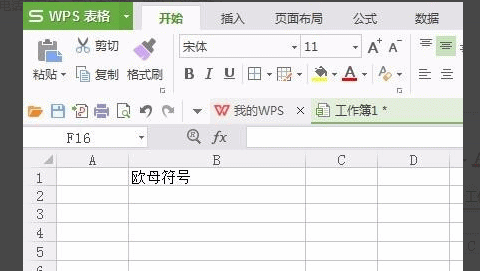
- On the menu bar, click Insert.
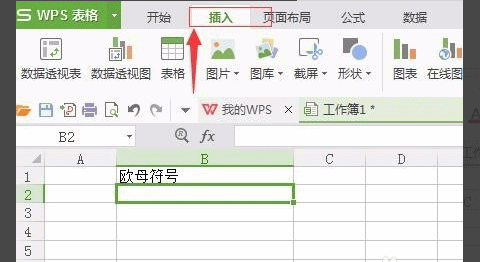
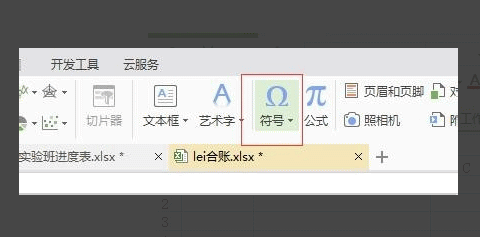
- In the Insert menu, choose Symbol.
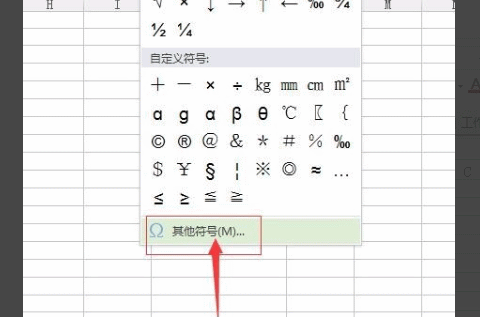
- At the bottom of the symbol list, open More Symbols.
- The symbol panel contains many characters, so you may need to browse through the list to locate the one you want.
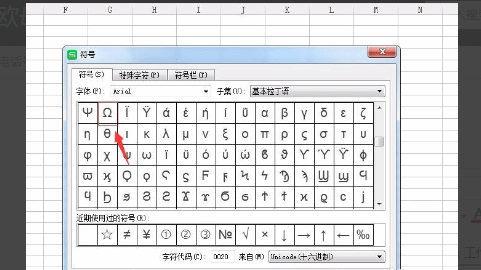
- Once you find the ohm symbol, click Insert, and it will be added at the position you selected earlier.