Selenium can do more than locate elements and read their state. It can also send input events that resemble real user behavior. The examples below are mainly for demonstration, and some snippets may need small adjustments before they run in a particular environment.
The Action interface is a low-level API for sending virtualized device input to a browser. It lets you combine individual actions into more complex sequences. With Selenium's Action interface you can simulate:
- mouse actions
- keyboard actions
- pen actions (Chrome only)
- wheel actions (Chrome only)
ActionChains
ActionChains is the tool Selenium provides for building and executing multi-step user interactions. It is useful when a single click or key press is not enough: hovering over a menu, selecting an item from a dropdown, opening a context menu, dragging an element, and similar flows.
The class supports chained calls, so a sequence can be assembled in a readable way and then executed with perform().
A short example:
from selenium import webdriver
from selenium.webdriver.common.action_chains import ActionChains
from selenium.webdriver.common.by import By

# Create browser driver
driver = webdriver.Chrome()

# Open webpage
driver.get("https://example.com")

# Locate target element
target_element = driver.find_element(By.XPATH, "//button[@id='my_button']")

# Create ActionChains object
actions = ActionChains(driver)

# Move mouse to target element
actions.move_to_element(target_element)

# Perform left mouse click on target element
actions.click()

# Execute actions
actions.perform()
Here move_to_element moves the pointer to the target, click queues a left click, and perform executes the queued sequence.
Mouse actions
Click
# Locate element to click
element = driver.find_element(By.XPATH, '//button[@id="myButton"]')

# Perform click operation
actions.click(element).perform()
You can also call click() directly on an element when a full action chain is unnecessary:
# Locate element to click
element = driver.find_element(By.XPATH, '//button[@id="myButton"]')

# Perform click operation
element.click()
Double-click
# Locate element to double-click
element = driver.find_element(By.XPATH, '//div[@id="myDiv"]')

# Perform double-click operation
actions.double_click(element).perform()
Right-click
# Locate element to right-click
element = driver.find_element(By.XPATH, '//span[@class="context-menu-item"]')

# Perform right-click operation
actions.context_click(element).perform()
Drag and drop
# Locate source and target elements
source_element = driver.find_element(By.XPATH, '//div[@id="source"]')
target_element = driver.find_element(By.XPATH, '//div[@id="target"]')

# Perform drag-and-drop operation
actions.drag_and_drop(source_element, target_element).perform()
Hover
# Locate element to hover over
element = driver.find_element(By.XPATH, '//a[@id="hoverLink"]')

# Perform hover operation
actions.move_to_element(element).perform()
These are common mouse patterns; Selenium's documentation covers additional variants.
Keyboard actions
Selenium can send text to inputs, press special keys, and execute key combinations.
Entering text
Use send_keys to type into an input field:
# Locate input box
input_box = driver.find_element(By.XPATH, "//input[@id='username']")

# Enter text
input_box.send_keys("your_username")
Replace the placeholder with the actual value you want to type.
Special keys
The Keys class handles keys such as Enter and Tab. For example:
from selenium.webdriver.common.keys import Keys

# Simulate pressing Enter key
input_box.send_keys(Keys.ENTER)
Key combinations
You can hold one key while pressing another. The example below selects all text with Ctrl+A:
from selenium.webdriver.common.keys import Keys
from selenium.webdriver.common.action_chains import ActionChains
from selenium.webdriver.common.by import By

# Create browser driver
driver = webdriver.Chrome()

# Open webpage
driver.get("https://example.com")

# Locate input box
input_box = driver.find_element(By.XPATH, "//input[@id='myInput']")

# Create ActionChains object
actions = ActionChains(driver)

# Enter text in input box
actions.send_keys_to_element(input_box, "your_text")

# Press Ctrl and A simultaneously (select all text)
actions.key_down(Keys.CONTROL).send_keys('a').key_up(Keys.CONTROL)

# Execute actions
actions.perform()
key_down presses a key, key_up releases it, and the calls between them happen while the key is held.
Mouse-action demo
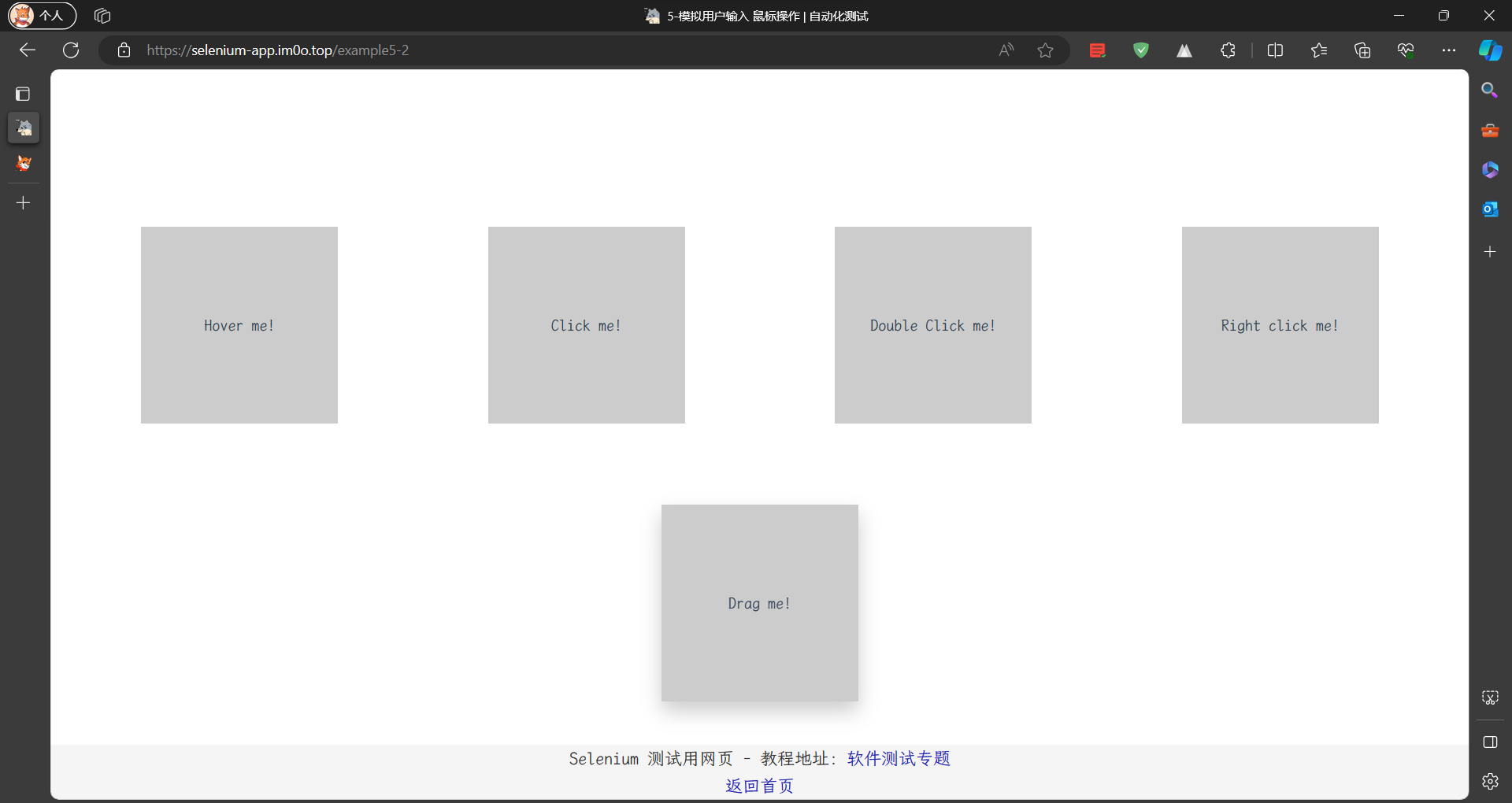
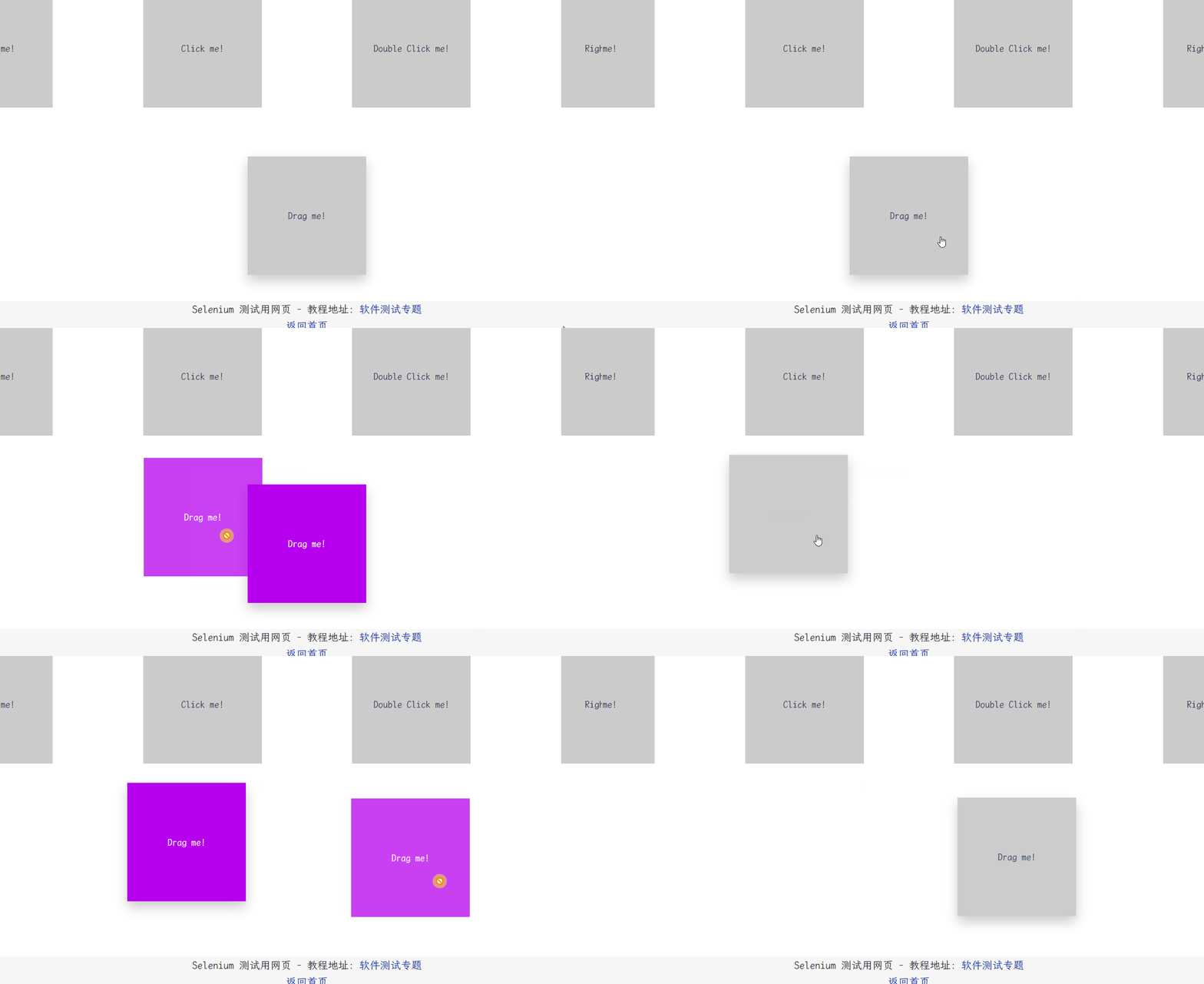
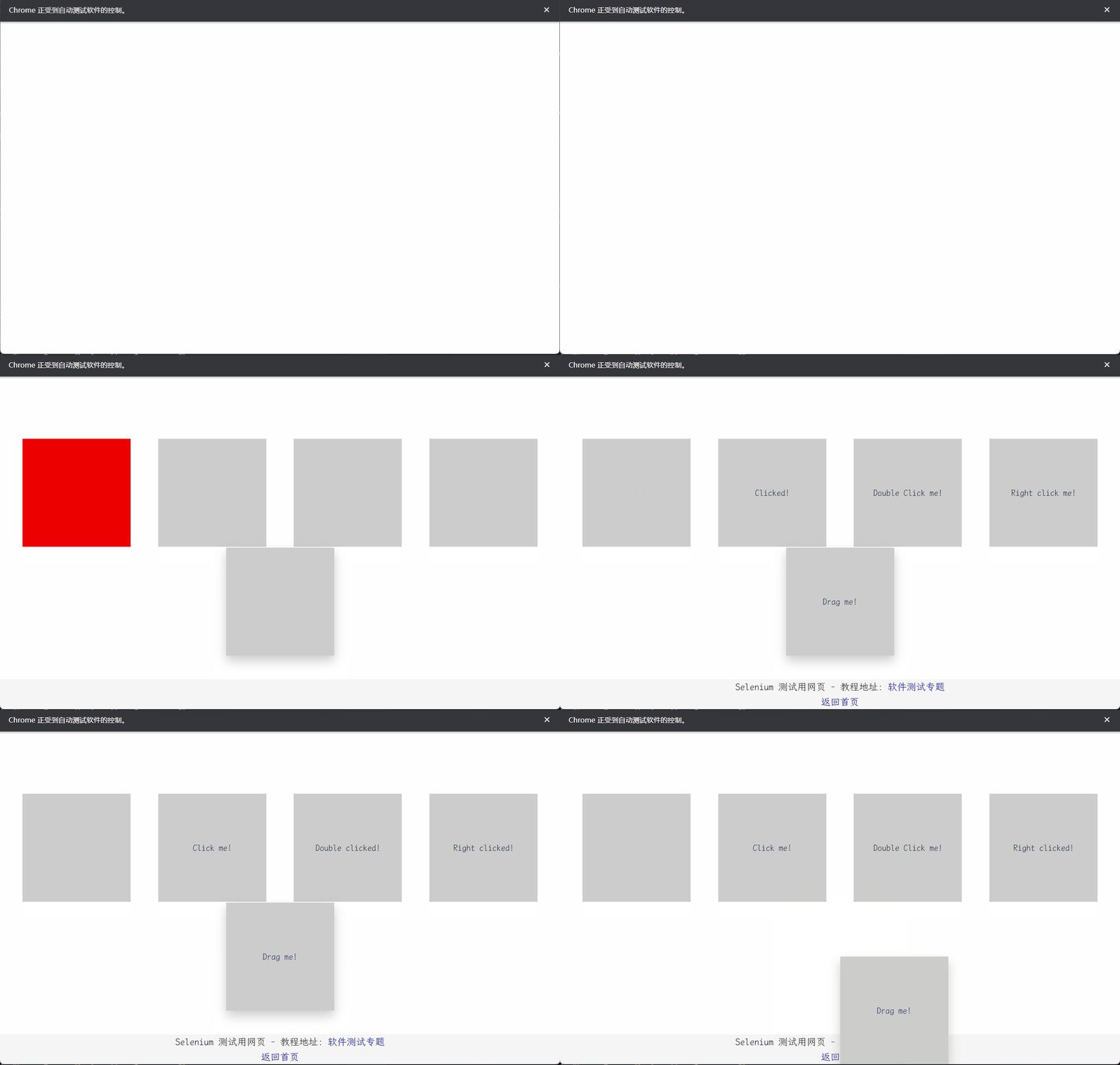
The demo page has five regions: hover, click, double-click, right-click, and drag. Each region reacts visibly.
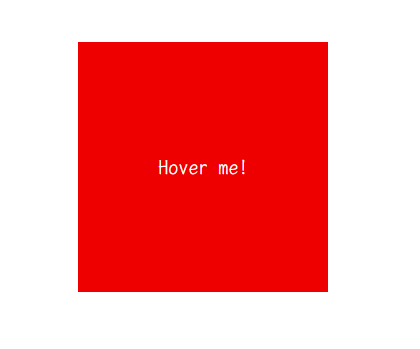
When the pointer moves over the hover region, its background turns red.
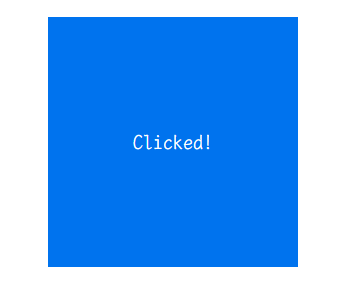
A single click changes the clicked region's text to Clicked! for five seconds.
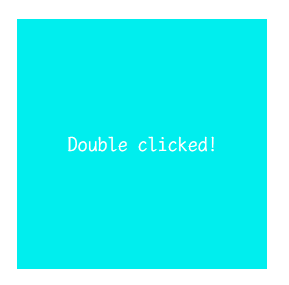
A double-click changes the double-click region's text to Double Clicked! for five seconds.
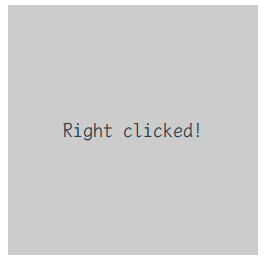
A right-click changes the right-click region's text to Right Clicked! for five seconds.
The drag region can be moved freely.
Script setup
Import the modules and create the driver:
from selenium import webdriver  # Import webdriver
from selenium.webdriver.common.action_chains import ActionChains  # Import ActionChains class
from selenium.webdriver.common.by import By  # Import By class

# Create browser driver
driver = webdriver.Chrome()
Open the page:
driver.get("https://selenium-app.im0o.top/example5-2")
Locate the five regions:
# Locate hover area
hover_area = driver.find_element(By.XPATH, '//*[@id="e5_2-block-hover"]')

# Locate click area
click_area = driver.find_element(By.XPATH, '//*[@id="e5_2-block-click"]')

# Locate double-click area
double_click_area = driver.find_element(By.XPATH, '//*[@id="e5_2-block-doubleclick"]')

# Locate right-click area
right_click_area = driver.find_element(By.XPATH, '//*[@id="e5_2-block-rightclick"]')

# Locate drag area
drag_area = driver.find_element(By.XPATH, '//*[@id="e5_2-block-drag"]')
Create an ActionChains object:
actions = ActionChains(driver)
Run the actions:
# Move mouse to hover area
actions.move_to_element(hover_area).perform()

# Perform left click on click area
actions.click(click_area).perform()

# Perform left double-click on double-click area
actions.double_click(double_click_area).perform()

# Perform right click on right-click area
actions.context_click(right_click_area).perform()

# Press and hold left mouse button on drag area, drag, and release
actions.click_and_hold(drag_area).move_by_offset(100, 100).release().perform()
Finally, close the browser:
driver.quit()
Full script
from selenium import webdriver  # Import webdriver
from selenium.webdriver.common.action_chains import ActionChains  # Import ActionChains class
from selenium.webdriver.common.by import By  # Import By class
import time  # Import time module

# Create browser driver
driver = webdriver.Chrome()

# Open webpage
driver.get("https://selenium-app.im0o.top/example5-2")

# Locate areas
hover_area = driver.find_element(By.XPATH, '//*[@id="e5_2-block-hover"]')
click_area = driver.find_element(By.XPATH, '//*[@id="e5_2-block-click"]')
double_click_area = driver.find_element(By.XPATH, '//*[@id="e5_2-block-doubleclick"]')
right_click_area = driver.find_element(By.XPATH, '//*[@id="e5_2-block-rightclick"]')
drag_area = driver.find_element(By.XPATH, '//*[@id="e5_2-block-drag"]')

actions = ActionChains(driver)

# Move mouse to hover area
actions.move_to_element(hover_area).perform()
time.sleep(2)

# Perform left click on click area
actions.click(click_area).perform()
time.sleep(2)

actions.double_click(double_click_area).perform()
time.sleep(2)

# Perform right click on right-click area
actions.context_click(right_click_area).perform()
time.sleep(2)

# Press and hold left mouse button on drag area, drag, and release
actions.click_and_hold(drag_area).move_by_offset(100, 100).release().perform()

input("按 Enter 键退出")

# Close browser
driver.quit()
When the script runs, the browser performs each action in sequence, with short pauses so the changes are visible.
Input-box demo
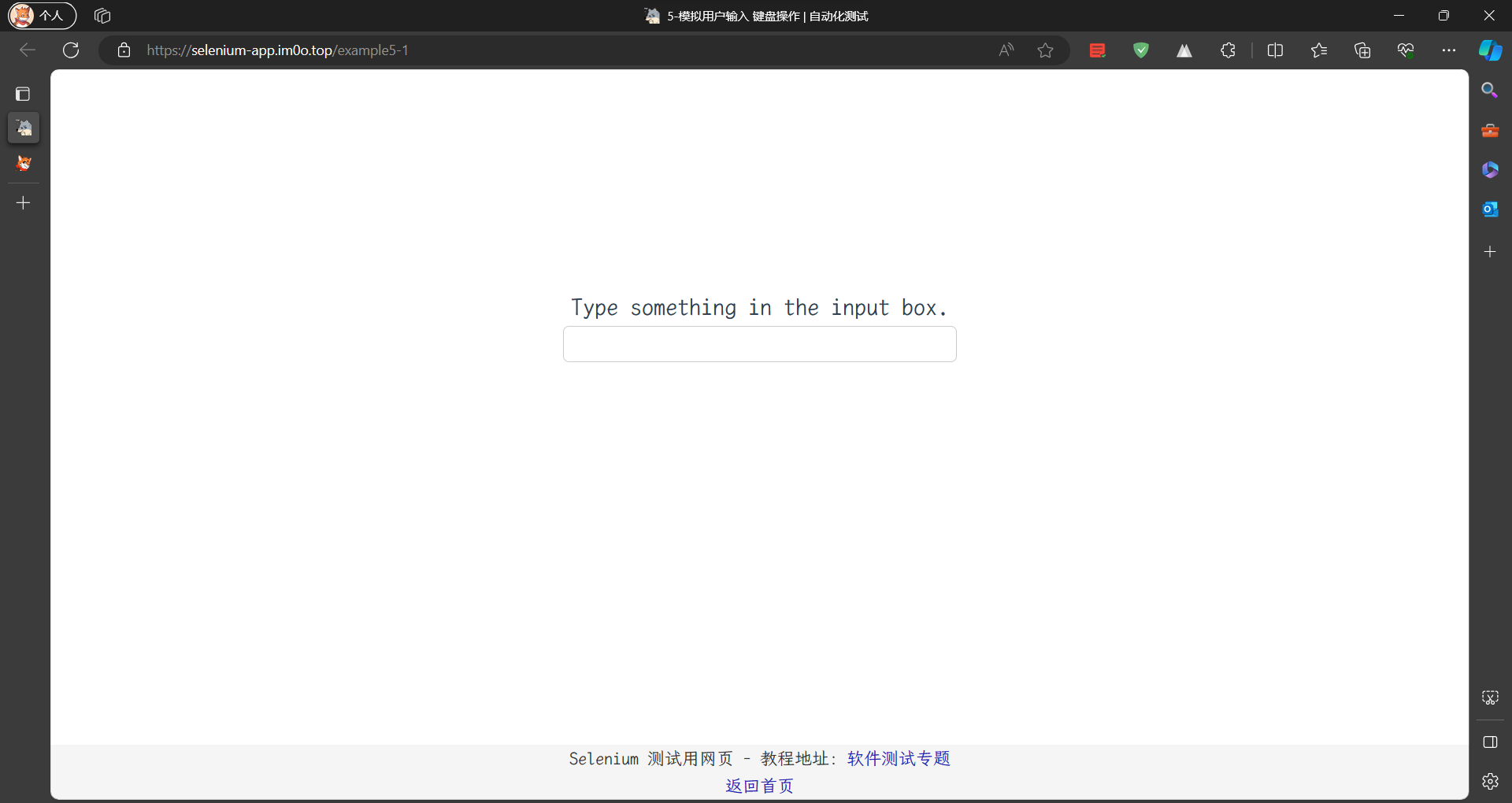
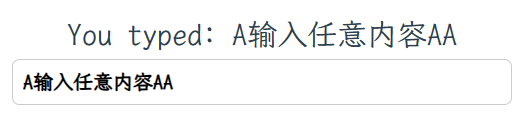
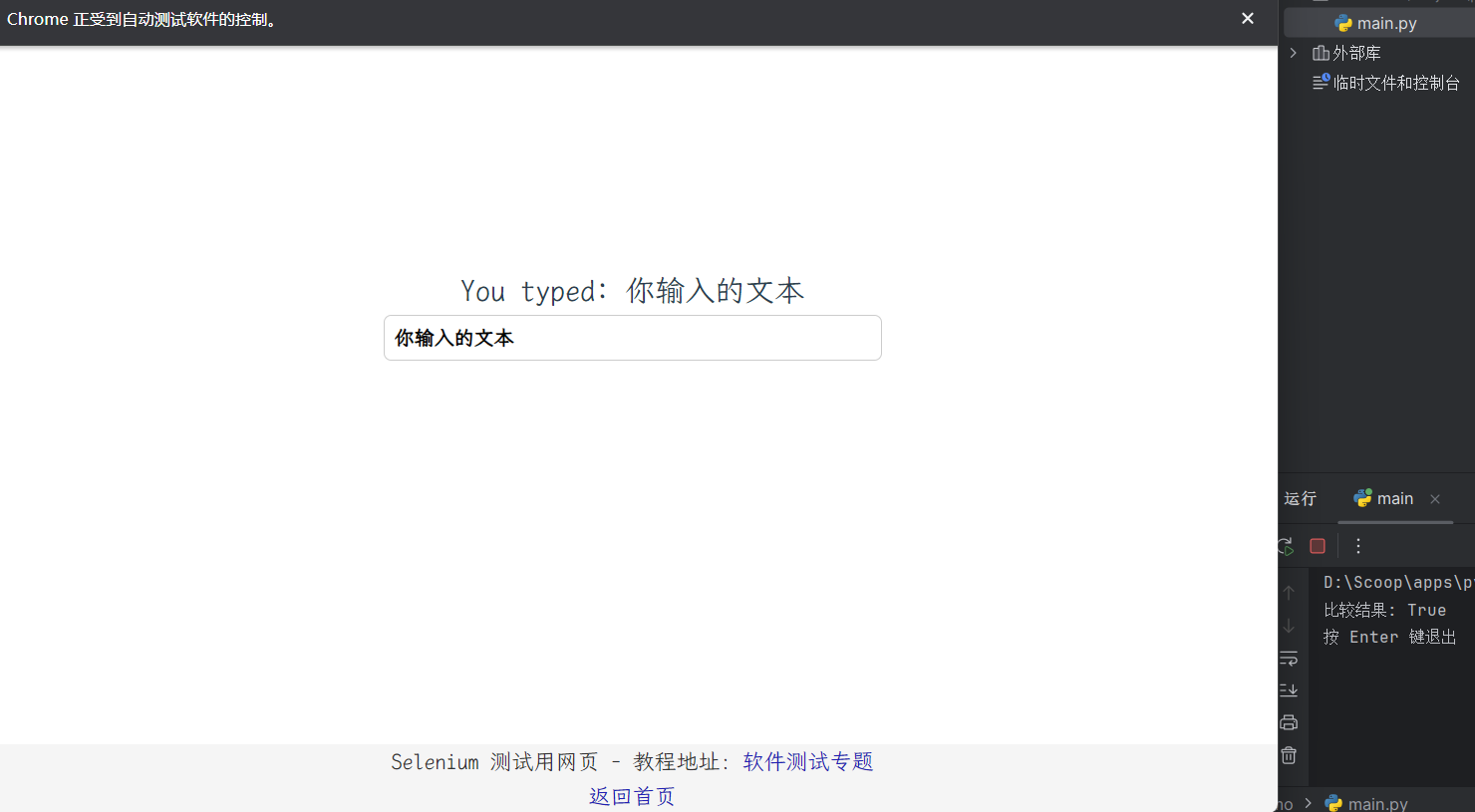
The page contains a single input box. As text is typed, the message above it changes from Type something in the input box. to You typed: ....
Script setup
from selenium import webdriver  # Import webdriver

# Create browser driver
driver = webdriver.Chrome()
Open the page:
driver.get("https://selenium-app.im0o.top/example5-1")
Locate the input and the message:
# Locate input box
input_box = driver.find_element(By.XPATH, '//*[@id="e5-Input"]')

# Locate tip text
tip_text = driver.find_element(By.XPATH, '//*[@id="app"]/div/p')
Type text and compare the result:
# Enter text in input box
input_box.send_keys("你输入的文本")
# Get prompt text
text = tip_text.text

# Compare prompt text and input text
print('比较结果: ', text == "You typed: 你输入的文本")
Close the browser:
driver.quit()
Full script
from selenium import webdriver  # Import webdriver
from selenium.webdriver.common.by import By  # Import By class

# Create browser driver
driver = webdriver.Chrome()

# Open webpage
driver.get("https://selenium-app.im0o.top/example5-1")

# Locate input box
input_box = driver.find_element(By.XPATH, '//*[@id="e5-Input"]')

# Locate tip text
tip_text = driver.find_element(By.XPATH, '//*[@id="app"]/div/p')

# Enter text in input box
input_box.send_keys("你输入的文本")

# Get prompt text
text = tip_text.text

# Compare prompt text and input text
print('比较结果:', text == "You typed: 你输入的文本")

input("按 Enter 键退出")

# Close browser
driver.quit()
The script should report whether the page's message matches the expected text.
Practice: simulate a user login
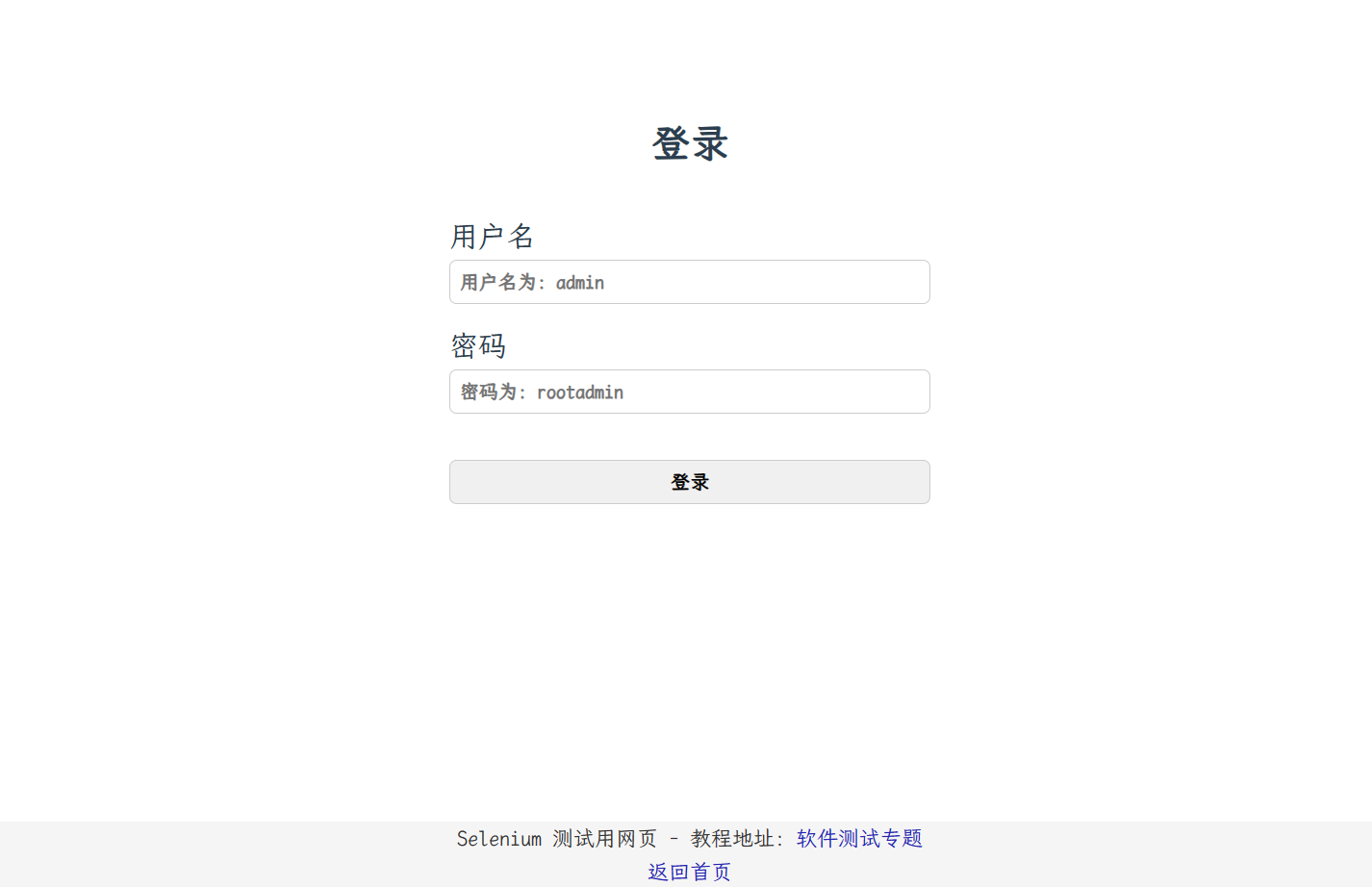
The practice page has a login form with username and password fields and a login button. Write a script that:
- opens the login practice page
- enters a username and password
- clicks the login button
- reads the login result
- closes the browser
This exercise combines element location, text entry, clicking, and reading text from the page. It is a small but realistic flow that mirrors what automated tests often need to do.