What started as a short command cheat sheet became something closer to a not-so-short tutorial. yt-dlp is easy to use at the surface, but once you care about formats, containers, cookies, or proxies, the details start to matter.
Installation
First make sure FFmpeg is available. FFprobe comes with it, so there is no separate install to worry about.
$ ffmpeg -version
ffmpeg version 7.0 Copyright (c) 2000-2024 the FFmpeg developers
built with Apple clang version 15.0.0 (clang-1500.1.0.2.5)
The official installation wiki covers the rest of the platforms: https://github.com/yt-dlp/yt-dlp/wiki/Installation. These are the commands I tend to use.
macOS
$ brew install yt-dlp

# update
$ brew upgrade yt-dlp
Ubuntu
$ sudo add-apt-repository ppa:tomtomtom/yt-dlp
$ sudo apt update
$ sudo apt install yt-dlp

# update
$ sudo apt update
$ sudo apt install yt-dlp
Check the installed version with:
$ yt-dlp --version
2024.08.01
Default download behavior
If you pass no format parameters, yt-dlp uses -f "bv*+ba/b" by default. In plain terms, it downloads the best video stream and the best audio stream, then merges them. For example:
$ yt-dlp https://www.youtube.com/watch?v=60ItHLz5WEA
For the rest of these examples I will use <video_url> instead of that YouTube link so the commands stay readable.
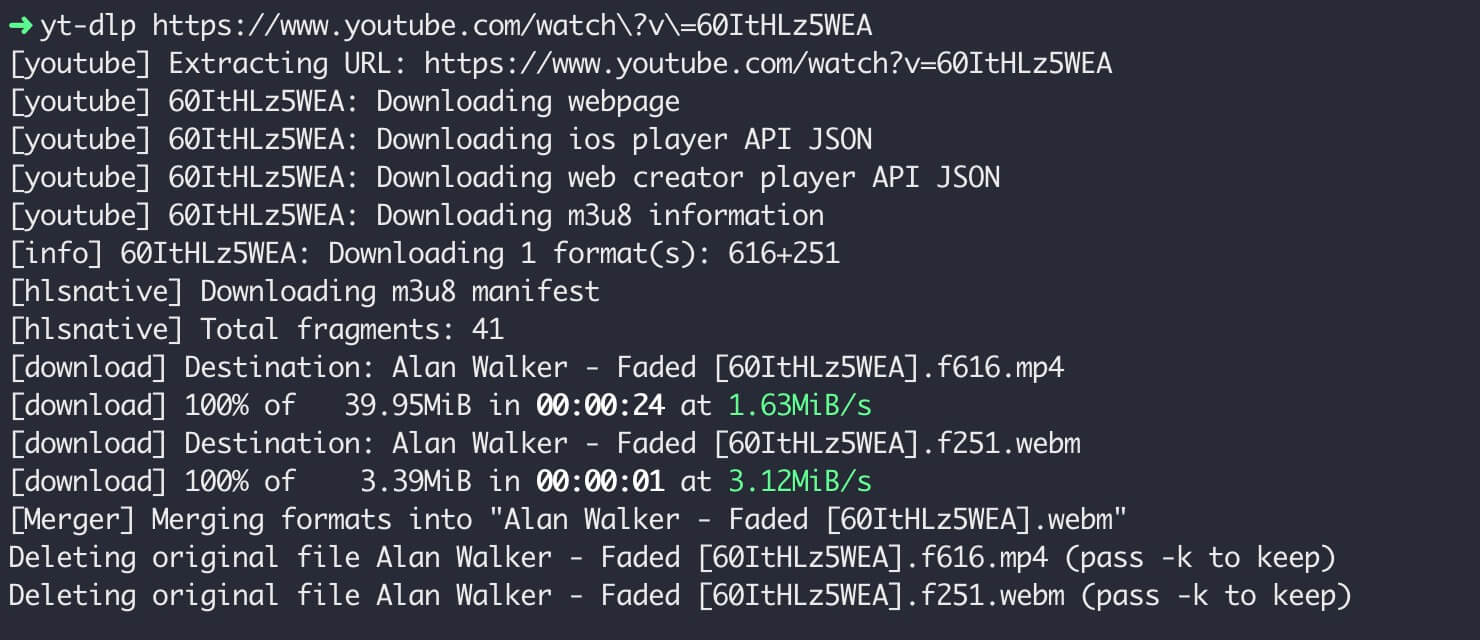
The output in that screenshot shows two separate downloads: a video-only stream and an audio-only stream. They are then merged into a file named Alan Walker - Faded [60ItHLz5WEA] with a .webm extension. The video stream was format 616 (video only, MP4), and the audio stream was format 251 (WebM). Those numbers are resource IDs, and they become useful when you want to inspect everything available for a video.
See every available format
$ yt-dlp --list-formats <video_url>
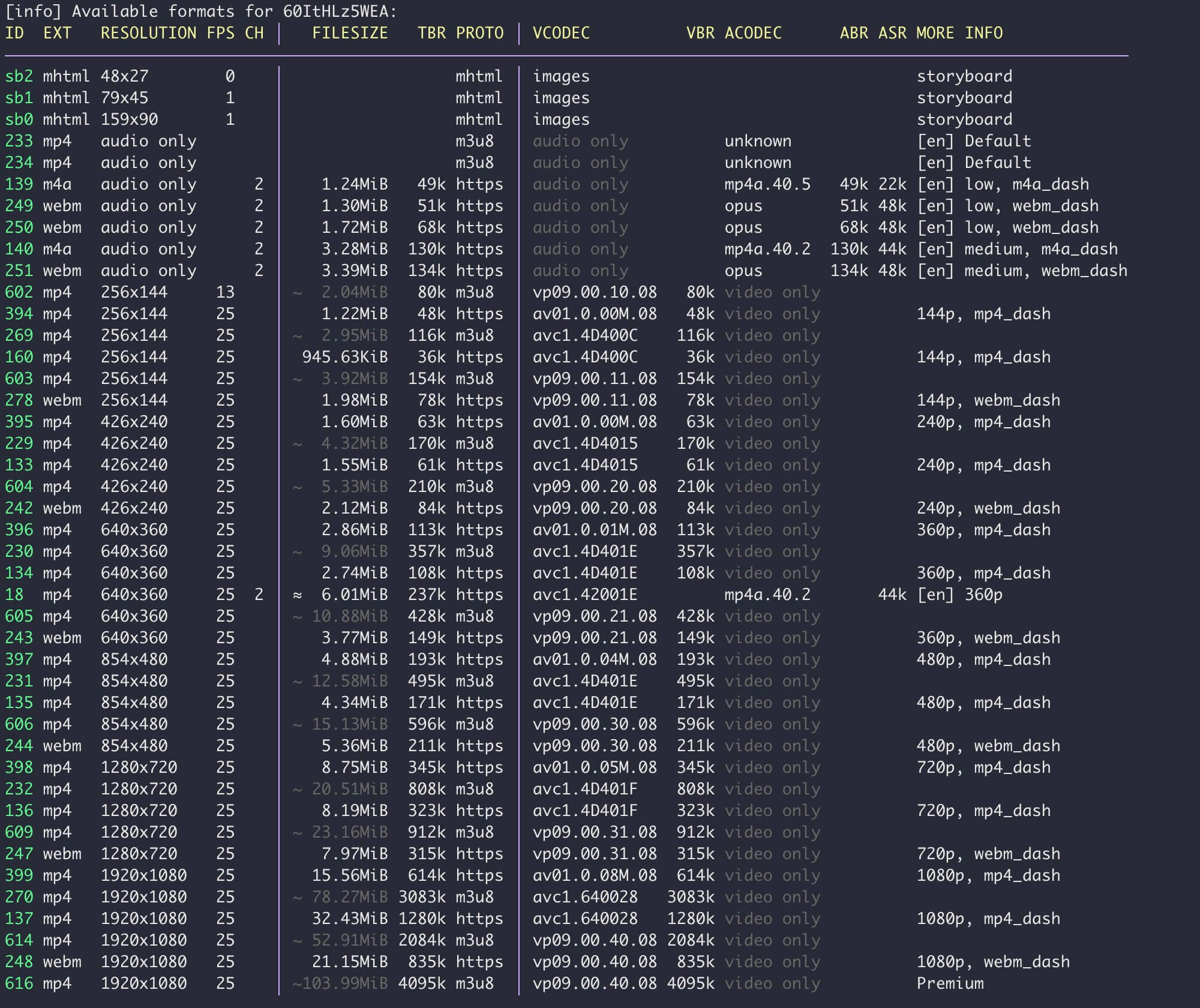
The list shows all the streams available for that video: different containers, resolutions, codecs, bitrates, and so on.
Take the 720p entries as an example.

The first column is the format ID, the second is the container extension, and the third is the resolution. In the sixth column, numbers like 345K and 808K are bitrates; higher is usually better, so format 609 is the best 720p option in that list.
The seventh column shows streaming protocols such as MPEG-DASH (https + mp4_dash) and m3u8. HLS is another protocol in the same family. For streams with the same codec, the downloaded content is the same regardless of the delivery protocol; the column mainly describes how the stream is transported.
The eighth column describes the codec: av01.0.05M.08, avc1.4D401F, and vp09.00.40.08 correspond to AV1, H.264, and VP9. AV1 is the newest of the three. VP9 is Google's open standard and is often a good fit for high-resolution material such as 4K. H.264 is the most widely supported. It is worth keeping codec and container separate in your head: AV1, H.264, and VP9 are codecs, while MP4, MKV, WEBM, and AVI are container formats that package video streams, audio streams, subtitles, and so on into a single file. In normal use you rarely need to specify an exact format ID; the commands below are easier.
The tenth column includes notes such as "video only", meaning that stream has no audio. If you look at format 18 in the full screenshot, it is a 360p MP4 with AV1 video and MP4A audio, so it contains both.
With that information, you can manually pick format 398 (AV1, 720p) and format 140 (MP4A audio) for a test:
# mp4
$ yt-dlp -f "398+140" <video_url>
The resulting file is MP4; yt-dlp makes that judgment automatically. If you choose format 247 (VP9) and format 140, the merged result is MKV. If you switch the audio to format 251 (Opus), the natural container becomes WebM. yt-dlp chooses a suitable container for the streams you selected.
# mkv
$ yt-dlp -f "247+140" <video_url>

# webm
$ yt-dlp -f "247+251" <video_url>
To force MP4 output:
# mp4
$ yt-dlp -f "247+251" --merge-output-format mp4 <video_url>
Commands worth keeping
Best quality MP4, with fallback
Prefer MP4, but fall back to the best available format if MP4 is not offered:
# use the default -f parameter
$ yt-dlp -S "ext" <video_url>

# or
$ yt-dlp -f "bv*[ext=mp4]+ba[ext=m4a]/b[ext=mp4] / bv*+ba/b" <video_url>
Best video and audio, regardless of container
$ yt-dlp -f "bv+ba/b" <video_url>
A specific resolution
# 720P
$ yt-dlp -f "bv[height=720][ext=mp4]+ba[ext=m4a]/b" <video_url>

# 1080P
$ yt-dlp -f "bv[height=1080][ext=mp4]+ba[ext=m4a]/b" <video_url>

# 4K
$ yt-dlp -f "bv[height=2060][ext=mp4]+ba[ext=m4a]/b" <video_url>
MP3 audio
$ yt-dlp --extract-audio --embed-thumbnail --audio-format mp3 <video_url>

yt-dlp --extract-audio --audio-format mp3 <video_url>
--extract-audio pulls out the audio stream. --embed-thumbnail adds the thumbnail as cover art. --audio-format sets the saved audio format; the possible values are best (default), aac, alac, flac, m4a, mp3, opus, vorbis, and wav.
A detail that surprised me: if you ask for mp3, flac, or opus, the final file gets that extension. If you choose aac, the saved file is .m4a; if you choose vorbis, the extension is .ogg. As with video, yt-dlp picks a container that fits the selected audio codec.
Playlist downloads
$ yt-dlp --download-archive archive.txt https://www.youtube.com/playlist?list=PLSk-fsG1YwI9Zu4e8MJBKM2TRjWcXqCDw
With --download-archive archive.txt, the IDs of downloaded files are stored in archive.txt, so items already downloaded are skipped automatically.
For more -f examples, the official format-selection examples are the place to look.
A closer look at -f "bv*+ba/b"
When you do not set -f, yt-dlp uses "bv*+ba/b", whose long form is "bestvideo*+bestaudio/best".
bv*+ba/b asks for the best video stream and the best audio stream and merges them into one file. Compared with bv+ba/b, the asterisk on bv* means the video does not have to be video-only; any video stream can qualify. It also is not limited to a single "best" candidate in every case, and may choose a more suitable stream when codecs or containers differ.
The plus sign means one video stream and one audio stream are downloaded and then merged. The slash means "or": if the condition before it cannot be satisfied, yt-dlp falls back to the condition after it.
best means the best video that already contains audio. If you use only -f b, and the only combined file is a 360p video that contains both video and audio, that is what you get, even though it is not high definition. It is essentially a fallback.
--merge-output-format mp4 versus MP4 selection
At first glance these two commands seem similar, and both can give you an MP4 file, but they do different things.
-f "bv+ba" --merge-output-format mp4 gets the best video and best audio streams, then merges them into an MP4 container. -f "bv[ext=mp4]+ba[ext=m4a]" instead selects the best MP4 video and M4A audio from the beginning, so the merged result is naturally MP4.
If your goal is an MP4 file, the second form is usually the better choice: it gives you better compatibility while still aiming for the best quality available in those formats. The first form is useful when you have already confirmed that the selected video and audio streams are a good fit for MP4, or when you do not care about the final container. If you just want the overall best quality for the video at hand, use -f "bv+ba" without forcing --merge-output-format mp4; you may end up with WebM.
I would not recommend combining the two without thinking about it. Putting a VP9 video stream into an MP4 container is not a conventional pairing. Some players can handle it, but compatibility is generally worse.
Cookies
The first time I needed cookies was with Bilibili. Without logging in, the downloaded video quality was lower. yt-dlp supports many sites beyond YouTube, Bilibili included.
One workable approach is to export cookies. For Firefox, the Cookies Text add-on (https://addons.mozilla.org/en-US/firefox/addon/cookies-txt/) can do this:
yt-dlp --cookies cookies.txt https://www.bilibili.com/video/BV1H44y1w7AX
The same command applies to YouTube. Cookies are especially relevant when downloading on a Linux server: after a few videos without cookies, YouTube can start blocking requests.
Another approach is to use cookies from the local browser cache. Some notes mention that cookies are not shared and that you need to close the browser, but I have not tested that route further.
SOCKS5 proxy
Finally, the --proxy option:
yt-dlp --proxy socks5://127.0.0.1:10808
May the connection stay smooth and the downloads uneventful 🌈. At this point, most straightforward yt-dlp use cases should be covered. For everything else, --help and the official documentation are the next stops.