I have been spending most of my time in the terminal lately. Apart from Google Chrome, I barely touch GUI applications anymore. Some time ago I removed QQ from my phone, hoping to put that attention somewhere more worthwhile. Today, for some reason, I thought of it again and wondered what it would be like to play with QQ entirely from the command line.
After searching around on Zhihu and V2EX, I found a GitHub project that looked fairly satisfying. It is written in Perl. I do not really know Perl, but the project exposes a decent set of APIs, so it was still worth digging into.
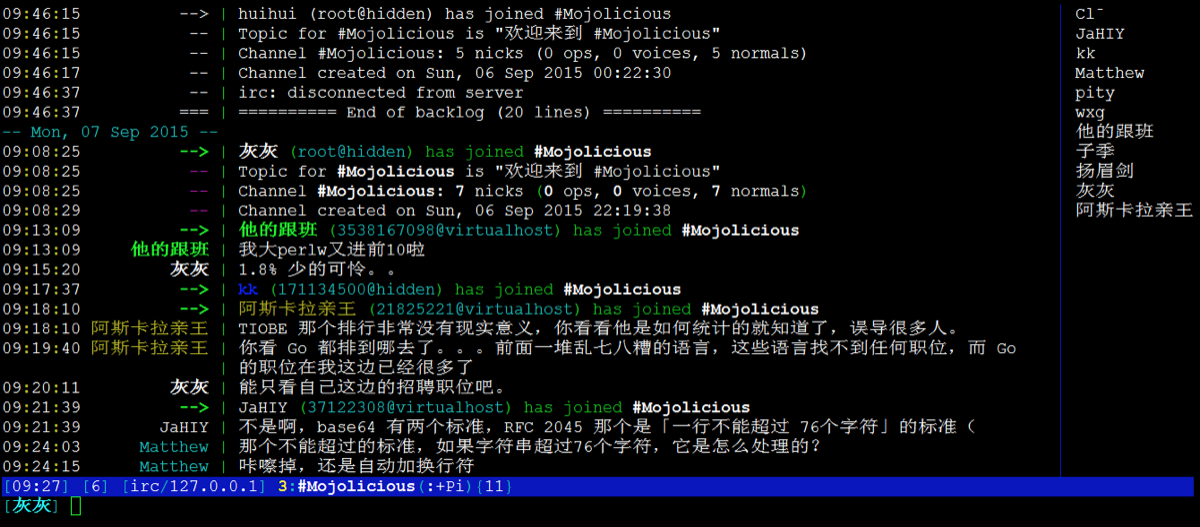
Installing and running Mojo-Webqq
The project is called Mojo-Webqq. It can be understood as a non-GUI client framework for SmartQQ. People who used Linux a few years ago may remember SmartQQ: QQ running in a browser. It has since been renamed WebQQ, and the web version is available at: http://web2.qq.com/.
The author is probably a Linux user as well, because the installation instructions are all written for Linux. I use macOS, but I still tried to follow the README and install it that way.
First, configure cpan. Run cpan directly in the terminal and follow the prompts, choosing the default options.
$ cpan
Then install the cpanm tool:
$ can -i App:coanminus
Next, install the Mojo::Webqq module online with cpanm:
$ cpanm -v Mojo::Webqq
I do not know much about Perl, and I am not fully sure what cpanm is either. My guess is that it is similar to npm in Node.js: a package management tool.
If the installation fails along the way, it is very likely that one of the dependency packages did not install correctly. In that case, pay close attention to the error message, then search on Google for the correct way to install that dependency.
Usage is much simpler. Create an instance and run it:
#!/usr/bin/env perl use Mojo::Webqq; my ($qq,$host,$port,$post_api); $qq = 12345678; #修改为你自己的实际QQ号码 $host = "0.0.0.0"; #发送消息接口监听地址,修改为自己希望监听的地址 $port = 5000; #发送消息接口监听端口,修改为自己希望监听的端口 $post_api = 'http://xxxx'; #接收到的消息上报接口,如果不需要接收消息上报,可以删除此行 my $client = Mojo::Webqq->new(qq=>$qq); $client->login(); $client->load("ShowMsg"); $client->load("Openqq",data=>{listen=>[{host=>$host,port=>$port}], post_api=>$post_api}); $client->run();
Save the code above as a xxxx.pl file, then run it with Perl. It will complete the QQ login process and start an HTTP server locally, listening on the specified address and port. For example, sending a message to a friend can be done like this:
curl http://127.0.0.1:5000/openqq/send_message?qq=xxxxx&content=hello
For the rest of the interface details, the project documentation is the place to look.
A little time with IRC
When I used Linux in the past, I had already tried a few IRC clients. At the time it felt like I had discovered a window opened specifically for programmers: all kinds of technical channels, all kinds of discussions. It was exciting then, though I no longer feel quite the same way about it now.
After searching for common recommendations, the two clients that appeared most often were Weechat and irssi. Neither is especially pleasant to install. Both depend on a lot of packages. Even ignoring the time spent installing and compiling, downloading the dependency packages alone took around half an hour.
I chose Weechat first. After getting it installed, I could not manage to configure Chinese text properly no matter what I tried. I am not even sure whether this was the right direction:
/charset decode GB2312
In any case, I did not get it working. I did, however, learn the basics of using IRC. Later I switched to irssi instead. Its display is not as friendly as Weechat, but Chinese input works by default.
For learning IRC, I do not think it is necessary to read too much documentation at the beginning. Once inside the interactive command line, type /help, and the system will print all available commands. From there, look for the command that seems relevant and continue learning it. For example, to connect to a channel, you might type:
/help server
or:
/help connect
Those keywords can all be discovered from /help. Using Weechat as an example, here are a few setup commands that are enough to get started:
# 添加一个 server /server add free node chat.freenode.net # 自动链接到 freenode /set irc.server.freenode.autoconnect on # 设置 nicks,username,realname /set irc.server.freenode.nicks “nickname” /set irc.server.freenode.username “username” /set irc.server.freenode.realname “realname”
Enter /connect freenode in the input box to connect to the Freenode server. Then enter /join #javascript to join the #javascript group.
# 自动认证 nickname /set irc.server.freenode.command "/msg nickserv identify xxxxxx" # 自动加入群组 /set irc.server.freenode.autojoin "#channel1,#channel2"
Mouse support can also be enabled:
# 启动鼠标支持 /moune enable # 打开时就支持 /set weechat.look.mouse on
For more documentation, searching Google should be enough.
I have not written anything for several days. Today’s small learning topic was Mojo-Webqq and IRC, so I will stop here for now. Later I plan to keep recording the things I learn and pay attention to each day, partly for myself and partly for anyone else who might need them.