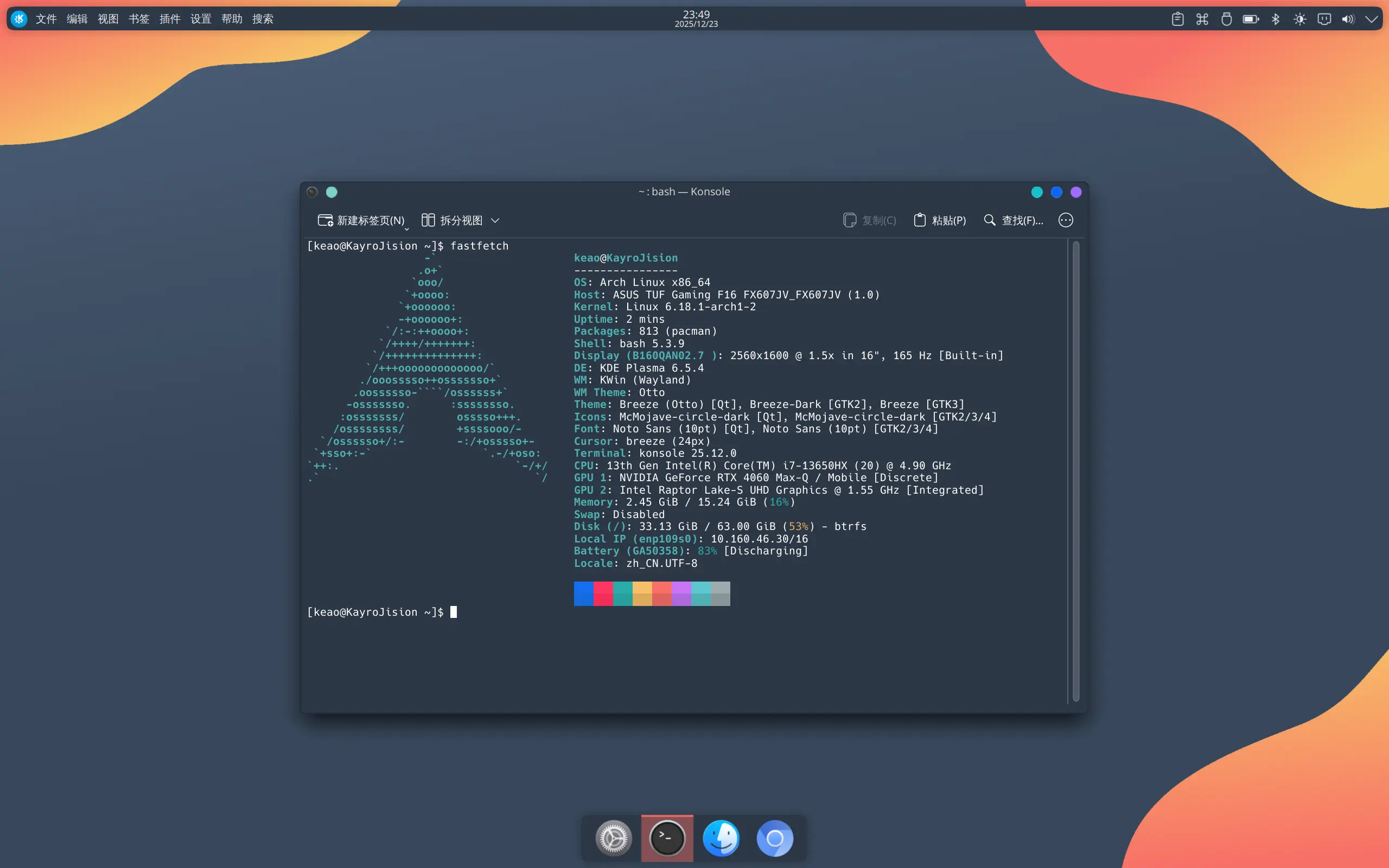
Arch Linux is used here as the example, but the same general approach can be adapted to other Linux distributions.
What you need
To build a Linux-to-go drive this way, prepare the following tools first:
- Oracle VirtualBox
- Ventoy
- an Arch Linux ISO
- the
vtoybootplugin
Setting up the installation environment
Create the Ventoy USB
Start by opening Ventoy2Disk.exe, choose the USB drive you want to use, and click install.
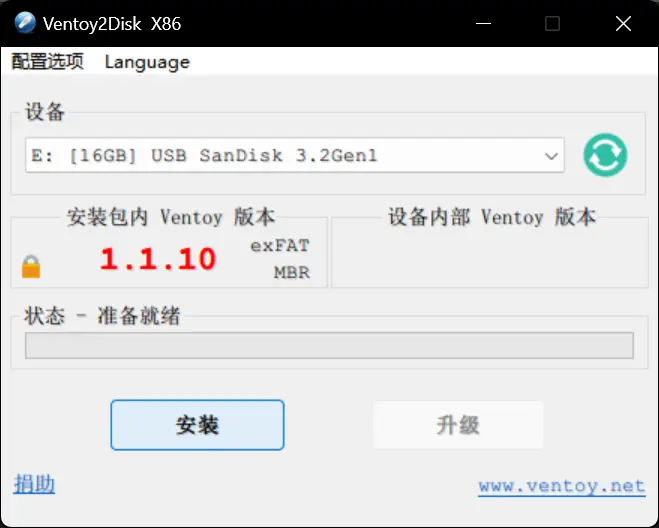
Once Ventoy is installed, File Explorer will show an empty removable drive labeled Ventoy. You can reformat that partition as NTFS afterward without breaking the Ventoy installation. In practice, NTFS is a bit safer and less likely to lose files after an unexpected power loss.
At that point, the Ventoy boot drive is ready.
Create the virtual machine
Open Oracle VirtualBox, create a new VM, and select the ISO you prepared. VirtualBox should detect the guest OS type automatically.
Two settings matter here:
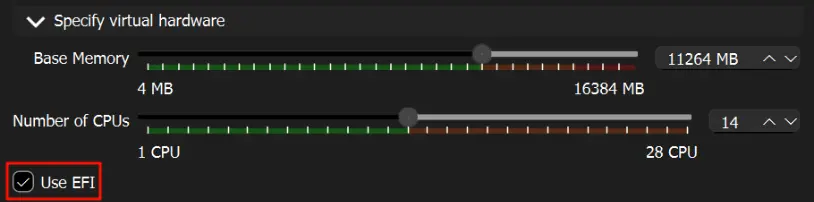
- Enable
Use EFI. If you skip this, Ventoy will not boot it properly later. The memory size and CPU count can stay at VirtualBox's recommended values, since those settings only affect the VM during installation and do not carry over as hardware limits for the final Linux-to-go system.
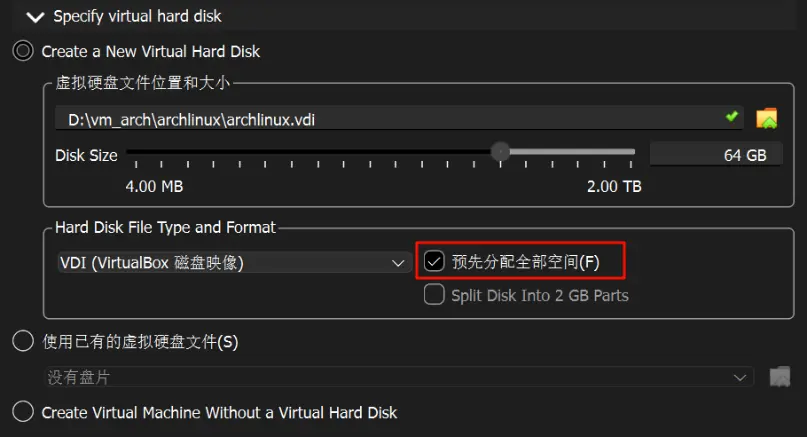
- Allocate the full virtual disk size in advance. This becomes the total size of the installed system image. In this example, it is set to 64 GB, but you should choose a value that matches your own needs and the capacity of the USB drive. This is usually inconvenient to change later.
After that, create the virtual disk and boot the VM to install the system.
Install Arch Linux
If you are also using Arch Linux, install it in the virtual machine as usual before moving on.
Prepare the vtoy bootable image
After the system is installed, the next step is to make it boot correctly through Ventoy.
Adjust the boot parameters
First, check the PARTUUID recorded in /boot/loader/entries:
`$
cat /boot/loader/entries/*.conf | grep --color=auto PARTUUID`
Then query the machine's UUID and note it down:
`$
blkid`
Now replace PARTUUID with UUID in the boot entry:
`$
sudo sed -i.bak 's/PARTUUID=你的PARTUUID/UUID=你的UUID/' /boot/loader/entries/*.conf`
Configure GRUB
Install grub and lvm2 first:
`$
sudo pacman -S --needed grub lvm2`
Then install and generate the GRUB configuration:
`$
sudo grub-install --target=x86_64-efi --efi-directory=/boot/efi --bootloader-id=grub --removable``$
sudo grub-mkconfig -o /boot/grub/grub.cfg`
Run the vtoyboot script
Mount vtoyboot.iso, which comes from the Ventoy plugin you downloaded earlier.
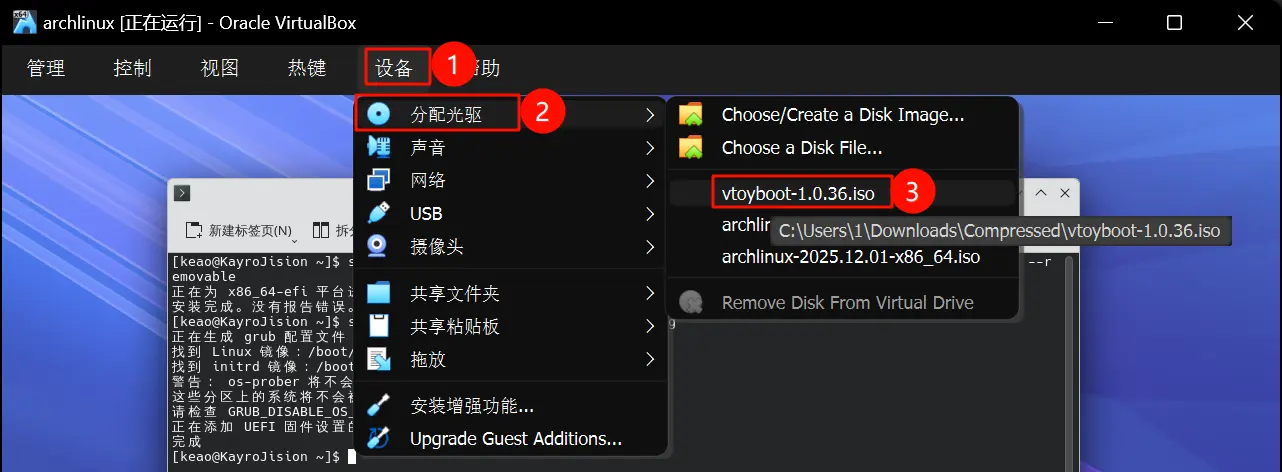
After mounting it, open the file manager and locate the newly added drive named Vtoyboot. Inside it, you will find vtoyboot.tar.gz. Extract it anywhere you like, then run the script:
`$
sudo ./vtoyboot.sh`
Move the image to the Ventoy drive
When everything above is finished, copy the VM's .vdi file to the root directory of the USB drive and rename the extension from .vdi to .vtoy.
Boot into the portable system
To start the system, enter your computer's BIOS or boot selection screen. Usually this means pressing the appropriate shortcut key when the startup logo appears.
If you are unsure about the timing, repeatedly tap the key during startup.
<table> <thead> <tr> <th>Brand</th> <th>Shortcut key</th> </tr> </thead> <tbody> <tr> <td>ASUS</td> <td>F2 or Del</td> </tr> <tr> <td>Lenovo laptop</td> <td>F2, Fn + F2, or F1</td> </tr> <tr> <td>Lenovo desktop</td> <td>F1</td> </tr> <tr> <td>Lenovo ThinkPad</td> <td>Press Enter, then F1</td> </tr> <tr> <td>Dell</td> <td>F2 or F12</td> </tr> <tr> <td>HP</td> <td>Esc or F10</td> </tr> <tr> <td>Acer</td> <td>F2 or Del</td> </tr> <tr> <td>Gigabyte</td> <td>Del or F12</td> </tr> <tr> <td>MSI</td> <td>Del or F2</td> </tr> <tr> <td>Samsung</td> <td>F2 or F10</td> </tr> <tr> <td>Microsoft Surface</td> <td>Hold Volume Up</td> </tr> </tbody> </table>It is recommended to disable Secure Boot in BIOS first, otherwise Ventoy or the .vtoy image may fail to boot.
Then choose the USB drive from the boot device list, enter the Ventoy menu, and select xxx.vtoy to launch the system.