I tinker with software the same way I fuss over the physical things I use every day: lazily, obsessively, and until it finally feels right. Once I reach that point, I can leave it alone for a long time. But getting there usually takes a while.
Firefox has been one of those long-running projects. It took a lot of trial and error, and my understanding of computer stuff has always felt like it grows in spirals rather than in a straight line—sometimes something clicks immediately, and sometimes I only understand a sentence months or years later. Still, after a recent round of tweaking, Firefox has reached a state that feels stable enough to write down.
This piece is only about appearance. That is the easy part, relatively speaking.
A note before getting into the CSS: all code below was tested on Firefox 126.0b2 (64-bit) with Proton disabled. Yes, in 2024, I still do not want Proton.
// profile/user.js
// appearance: disable proton
// https://github.com/Aris-t2/CustomCSSforFx/issues/339
user_pref("browser.proton.enabled", false);
user_pref("browser.proton.contextmenus.enabled", false);
user_pref("browser.proton.doorhangers.enabled", false);
user_pref("browser.proton.infobars.enabled", false);
user_pref("browser.proton.modals.enabled", false);
user_pref("browser.proton.places-tooltip.enabled", false);
Firefox is not, by itself, a privacy-first browser. What keeps me using it is something else: it is extraordinarily customizable. You can control an absurd amount of its behavior with settings, extensions, and CSS, from privacy tweaks to a total visual overhaul.
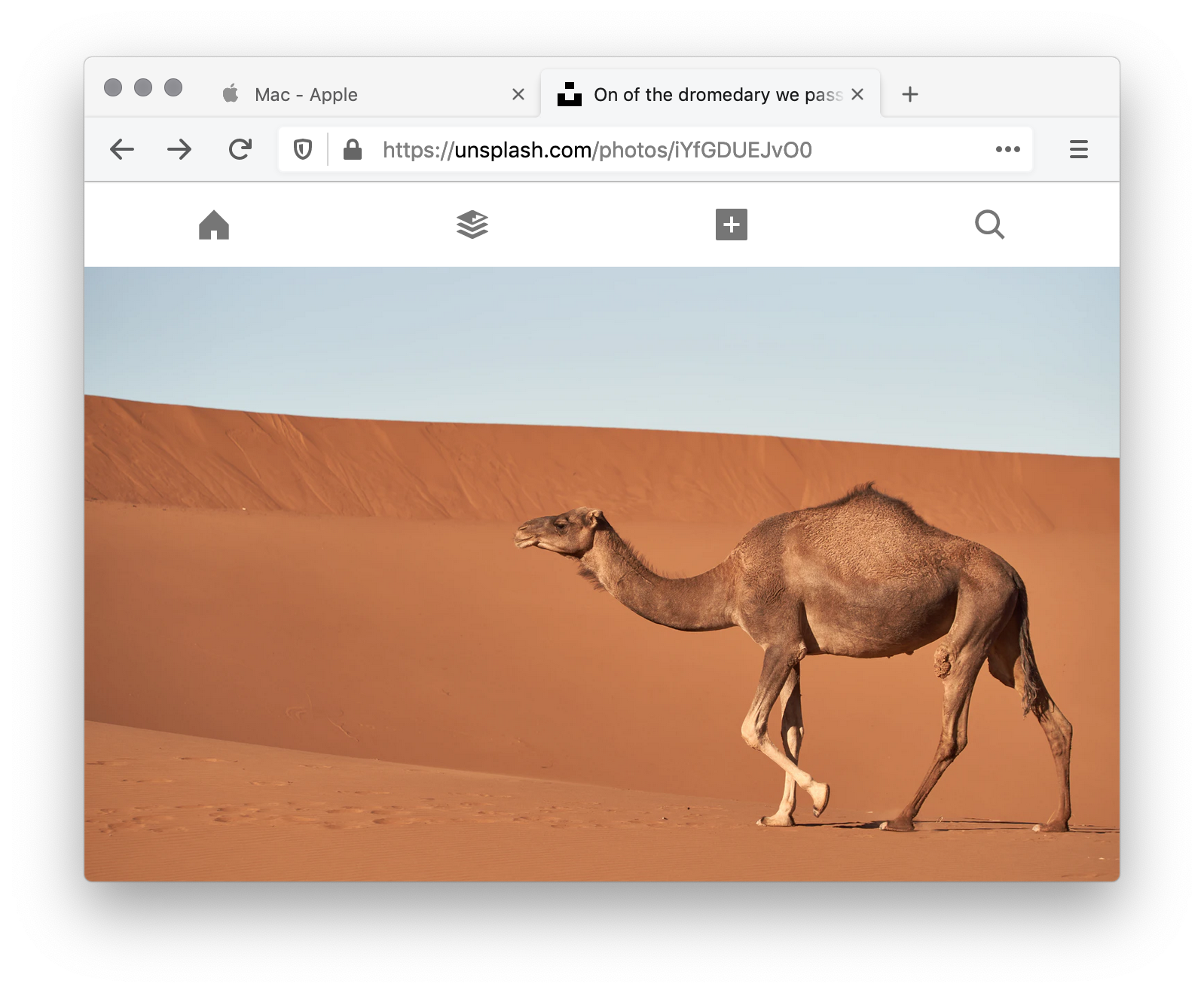
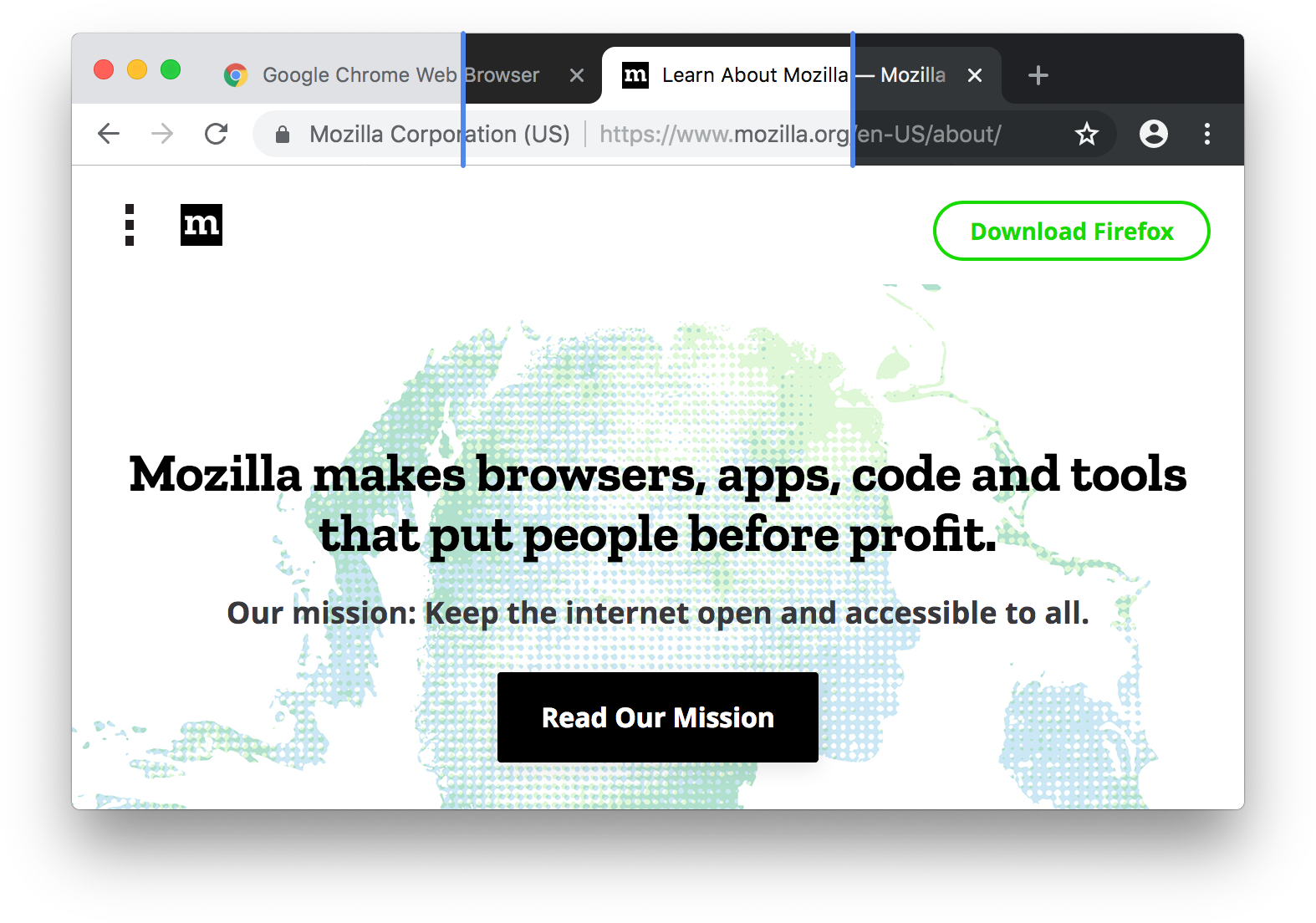
And I do mean a total overhaul, not just themes and accent colors. Firefox is one of the few browsers where dropping in a couple of CSS files can make it resemble an entirely different browser. The first time I saw that, I was stunned.

ideaweb/firefox-safari-style
kube/firefox-edge-theme
muckSponge/MaterialFox
If people can do that, then hiding one annoying button or replacing one ugly icon is trivial by comparison.
Most visual customization in Firefox revolves around two files: userChrome.css and userContent.css. At the risk of sounding dramatic, I increasingly feel that anyone who wants real control over their web experience should know at least a little CSS and JavaScript. Not only people who build websites—anyone.
So: learn a bit, poke around, and steal shamelessly from people who already did the hard work.
Good places to borrow from
The biggest and most active Firefox appearance-tweaking resource I know is Aris-t2’s repository:
- GitHub - Aris-t2/CustomCSSforFx: Custom CSS tweaks for Firefox
It is massive. The number of options is impressive and occasionally headache-inducing, so I mostly go there when I need a specific trick or want to see how something is implemented.
A few other useful places:
- FirefoxCSS Store
- Timvde/UserChrome-Tweaks: A community maintained repository of userChrome.css tweaks for Firefox
- MrOtherGuy/firefox-csshacks: Collection of userstyles affecting the browser
And if all of this is completely unfamiliar, these kinds of introductory guides are worth reading:
- userchrome - firefox
- index/tutorials - FirefoxCSS
- What is userChrome.css? What can it do?
- 用下面这些方法,为自己高度定制一个 Firefox 浏览器 - 少数派
Enabling custom CSS in Firefox
First, Firefox has to be told to load your custom stylesheets.
- Open
about:configin the address bar. - Accept the warning.
- Search for
toolkit.legacyUserProfileCustomizations.stylesheets. - If it does not exist, create it as a Boolean. - If it exists but isfalse, switch it totrue. - If it is alreadytrue, you are done.
Then find your profile folder:
- Open
Help > More Troubleshooting Information. - Find
Profile Folderand open it. - If there is no folder named
chrome, create one. - Put
userChrome.cssanduserContent.cssinsidechrome.
Any change to these files requires a browser restart before it takes effect.
If you want to inspect Firefox’s own UI with devtools, enable the browser toolbox too:
- Open Web Toolbox settings.
- On macOS:
option+command+I- On Windows:ctrl+shift+I- Or directly useoption+command+shift+I - In advanced settings, enable:
-
Enable browser chrome and add-on debugging toolboxes-Enable remote debugging
Or, if you know exactly what you are doing, put everything together in user.js:
// profile/user.js
user_pref("toolkit.legacyUserProfileCustomizations.stylesheets", true);
user_pref("devtools.chrome.enabled", true);
user_pref("devtools.debugger.remote-enabled", true);
user_pref("devtools.debugger.prompt-connection", false);
Working with userChrome.css
Everything in the sections below can be pasted directly into userChrome.css.
Give tab favicons a background outline
The first problem that sent me down this rabbit hole was annoyingly specific.
On my Mac, Firefox Developer Edition’s default theme looked like this:

My ideal browser interface is one that disappears. That blue did not disappear nearly enough, so I made my own extremely plain custom theme—my "boring theme":

After using it for a while, though, I ran into a real annoyance. Some websites have favicons that become unreadable on inactive tabs:

If you have used GitHub CI, you know the favicon can include a tiny red X or green check in the corner. On that background, it was effectively impossible to tell which one it was.
This bothered me for months. I found all sorts of partial fixes, including one that put a checkerboard-like background behind icons, but it never felt elegant. Eventually I solved it myself with the simplest possible idea: give the favicon a white outline using drop-shadow.
Now my tabs look like this:

That kind of problem is deeply satisfying once solved. One little fix, applied once, and then it keeps working across restarts, reinstalls, and even new machines as long as you carry the CSS file over.
Here is the code:
.tab-icon-image {
  filter: drop-shadow(1px 0 0 white)
          drop-shadow(-1px 0 0 white)
          drop-shadow(0 1px 0 white)
          drop-shadow(0 -1px 0 white) !important;
}
Force certain buttons to stay visible—or disappear
A very simple wish: why not always show the Reader View button?
Firefox’s decision-making around whether a page “deserves” a Reader View button can be baffling. Plenty of extensions try to work around it, but the ones I tried were never reliable. At some point, while rummaging around in the browser toolbox, I discovered the button is always there—it is just hidden sometimes.
So this works:
#reader-mode-button {
    visibility: visible !important;
    display: block !important;
}
The opposite case is just as useful. I never use the big plus button for opening a new tab, and it wastes space in a tab bar that is already crowded enough. I use command+T; I do not need a giant button for it.
So I hide it:
#new-tab-button {
    visibility: collapse !important;
    display: none !important;
}
Once you start inspecting Firefox’s UI, this pattern shows up everywhere. Most important interface elements have IDs, so once you find the right one, showing or hiding things is usually as simple as following the same template.
Rearranging the tab bar
The result first:
This is one of my favorite changes. It combines several snippets from Aris-t2’s repository, including files that were explicitly marked as incompatible with each other. I merged them anyway because the goal was clear: give tab titles more room and make every background tab easy to close at any time.
The original inspiration was Safari, but after finishing it I realized Safari gives the close button and the favicon separate spaces. Mine does not. Fine by me.
The key ideas here are:
- Move the close button to the far left of the tab and resize it to match the favicon.
- Show the close button only on hover, including for background tabs.
- Keep favicon space stable so the UI does not jump around; if a site has no favicon, show the default placeholder.
- Hide the favicon while the close button is visible.
- Remove the semi-transparent title fade mask so a few more characters remain readable.
/* loikein: adjust tab content order */
.tab-content {
  display: grid;
  grid-auto-flow: column;
}

.tab-close-button {
  padding: 4px !important;
  grid-column: 1;
  margin-left: -4px !important;
}

/* loikein: hide title mask */
.tab-label-container { mask-image: none !important; }

/* Firefox Quantum userChrome.css tweaks ************************************************/
/* Github: https://github.com/aris-t2/customcssforfx ************************************/

/****************************************************************************************/
/* tab close icon settings - [only use one at a time] *******************************************/
/* tab_close_show_on_hover_only.css */

#TabsToolbar #tabbrowser-tabs .tabbrowser-tab:not([pinned]):not(:hover) .tab-close-button {
  visibility: collapse !important;
  display: none !important;
}

#TabsToolbar #tabbrowser-tabs .tabbrowser-tab:not([pinned]):hover .tab-close-button {
  visibility: visible !important;
  display: block !important;
}

/* tab_close_at_tabs_start.css" */
/* loikein: slightly adjusted margins to go with favicon */

#TabsToolbar #tabbrowser-tabs .tabbrowser-tab:not([pinned]) .tab-close-button {
  -moz-box-ordinal-group: 0 !important;
  -moz-margin-start: -4px !important;
  -moz-margin-end: 1.5px !important; /* Proton*/
}

/* missing_tab_favicon_restored_default.css */

.tabbrowser-tab:not([pinned]) .tab-icon-image:not([src]) {
  display: inline !important;
}

.tabbrowser-tab:not([pinned])[busy] .tab-icon-image {
  display: none !important;
}

/* loikein: hide favicon when close button appears */
#TabsToolbar #tabbrowser-tabs .tabbrowser-tab:not([pinned]):hover .tab-icon-stack {
  visibility: collapse !important;
  display: none !important;
}
Auto-hide idle toolbars
Again, the effect first:
This tweak comes from a very practical annoyance. I have a narrow field of view, I do not work well on large screens, and I get distracted easily when there are too many elements visible at once.
At some point it occurred to me that while actually browsing, a browser only needs the minimum amount of UI on screen. Everything else can stay hidden until I need it, much like auto-hiding the macOS Dock. That saves vertical space and reduces visual clutter at the same time, which makes it easier to focus on the webpage itself.
Again: my ideal browser is one that disappears.
The following CSS comes from MrOtherGuy’s firefox-csshacks. The comments are already good, so there is no need to rewrite them. The only thing worth noting is that the highlighted values in the #navigator-toolbox section—especially --uc-bm-height—may need adjusting depending on your screen size and whether you want that top border line on the page. For reference, I use a 13-inch display.
/* autohide bookmarks and main toolbars */
/*
Source file: https://github.com/MrOtherGuy/firefox-csshacks/tree/master/chrome/autohide_bookmarks_and_main_toolbars.css
made available under Mozilla Public License v. 2.0
See the above repository for updates as well as full license text.
 */

#navigator-toolbox{
  --uc-bm-height: 30px; /* Might need to adjust if the toolbar has other buttons */ /* Proton*/
  --uc-bm-padding: 2px; /* Vertical padding to be applied to bookmarks */
  --uc-navbar-height: -36px; /* navbar is main toolbar. Use negative value */
  --uc-autohide-toolbar-delay: 600ms; /* The toolbar is hidden after 0.6s */
  /*! border: none; */
}

:root[uidensity="compact"] #navigator-toolbox{ --uc-bm-padding: 1px; --uc-navbar-height: -32px }
:root[uidensity="touch"] #navigator-toolbox{ --uc-bm-padding: 6px }

@media (-moz-proton){
  #navigator-toolbox{
     --uc-bm-height: 26px; /* Might need to adjust if the toolbar has other buttons */
  }
  :root[uidensity="compact"] #navigator-toolbox{
    --uc-navbar-height: -34px;
    --uc-bm-height: 23px;
  }
}

:root[sessionrestored] #nav-bar,
:root[sessionrestored] #PersonalToolbar{
  transform: rotateX(90deg);
  transform-origin: top;
  transition: transform 135ms linear var(--uc-autohide-toolbar-delay) !important;
  z-index: 2;
}
#nav-bar[customizing],#PersonalToolbar[customizing]{ transform: none !important }

#navigator-toolbox > #PersonalToolbar{
  transform-origin: 0px var(--uc-navbar-height);
  z-index: 1;
  position: relative;
}

:root[sessionrestored]:not([customizing]) #navigator-toolbox{ margin-bottom:  calc(2px - var(--uc-bm-height) - 2 * var(--uc-bm-padding) + var(--uc-navbar-height)); }

#PlacesToolbarItems > .bookmark-item,
#OtherBookmarks,
#PersonalToolbar > #import-button{
  padding-block: var(--uc-bm-padding) !important;
}

/* Make sure the bookmarks toolbar is never collapsed even if it is disabled */
#PersonalToolbar[collapsed="true"]{
  min-height: initial !important;
  max-height: initial !important;
  visibility: hidden !important
}

/* The invisible toolbox will overlap sidebar so we'll work around that here */
#navigator-toolbox{ pointer-events: none; border-bottom: none !important; }
#PersonalToolbar{ border-bottom: 1px solid var(--chrome-content-separator-color) }
#navigator-toolbox > *{ pointer-events: auto; /*! border: none; */}

#sidebar-box{ position: relative }

/* SELECT TOOLBAR BEHAVIOR */
/* Comment out or delete one of these to disable that behavior */

/* Show when urlbar is focused */
#nav-bar:focus-within + #PersonalToolbar,
#navigator-toolbox > #nav-bar:focus-within{
  transition-delay: 100ms !important;
  transform: rotateX(0);
}

/* Show when cursor is over the toolbar area */
#navigator-toolbox:hover > .browser-toolbar{
  transition-delay: 100ms !important;
  transform: rotateX(0);
}
userContent.css: the deeper rabbit hole
userContent.css is for styling Firefox’s internal pages, such as settings and extension management pages.
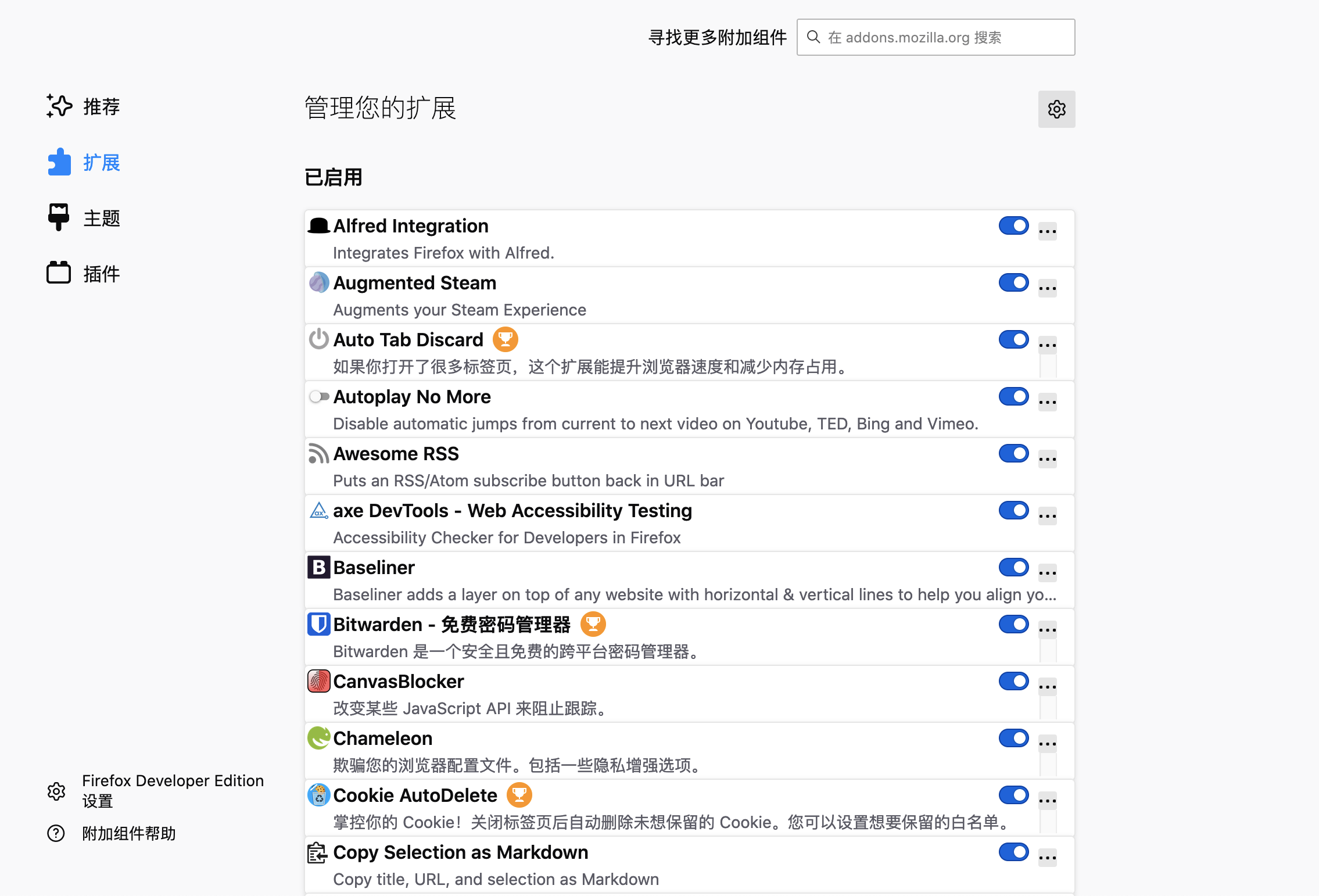
I have not gone very deep with it because there is not much there I urgently want to change. So far, the only thing I use it for is making the add-ons page more compact, using CustomCSSforFx/addonlists_compact_fx72.css pasted in directly.
The result looks like this:
That is enough for one round of Firefox interface meddling.