If you’ve ever wished for an AI tool that could search through your own notes and materials, then answer you in a chat-like way, that’s really the core idea behind a knowledge base, or RAG. With Cherry Studio, together with open-source models in Ollama and the free usage credits offered by services like DeepSeek and Gemini, even someone with zero technical background can set up a personal AI knowledge base without much trouble.
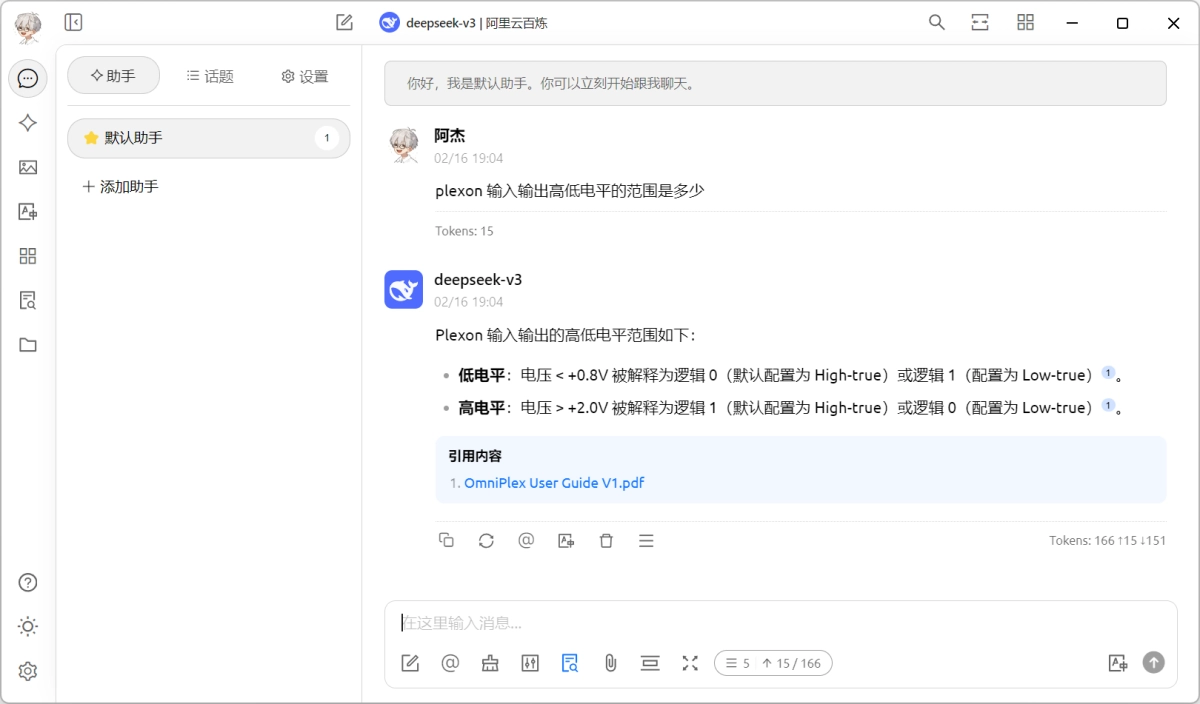
What it looks like
The AI pulls information from your knowledge base before answering your question.
What’s going on underneath
Honestly, I’m not the kind of person who can talk deeply about theory either. What I do know is this: you need a text embedding model to preprocess the materials you put into the knowledge base, and you also need a language model to generate the final response. The quality of both models affects the result, so these are the two things you need to prepare.
Tools you need
-
Cherry Studio: the app you’ll actually use.
https://cherry-ai.com/ -
Ollama: used to install the
bge-m3text embedding model, which preprocesses the materials that go into the knowledge base. -
DeepSeek API Key: you can get free tokens from platforms such as DeepSeek’s official site, Alibaba Cloud Bailian, Tencent Cloud, or Volcano Engine, and then call the full DeepSeek model through the API without deploying a large model locally.
Because you only need to install one app and one embedding model locally, the hardware requirements are pretty modest. A regular computer should be enough.
Step by step
-
Download the free Cherry Studio app from the official website and install it.
-
Download Ollama from the official site and install it as well. We’ll use it to install the text embedding model that preprocesses the knowledge base materials.
-
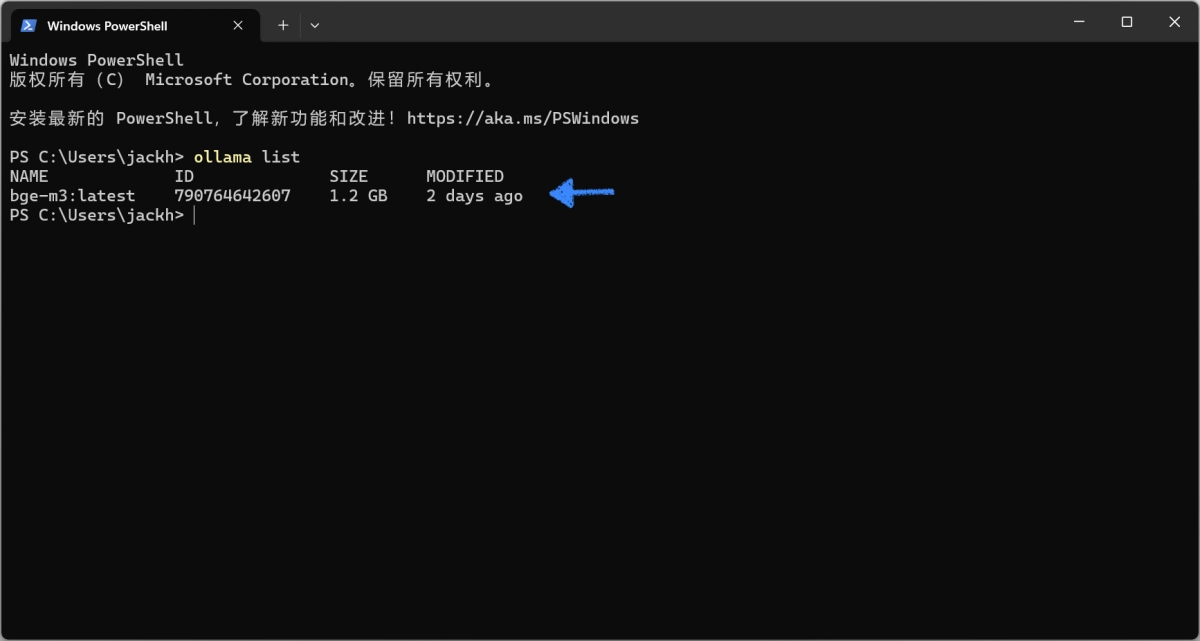
After Ollama is installed, open your terminal app. On Mac, search for “Terminal”; on Windows, search for “Terminal” as well. In the black command-line window, enter
ollama pull bge-m3to download and install the embedding model. Wait for it to finish. When it’s done, runollama listand you should see the model you just installed.
-
Pick a platform where you can get free DeepSeek usage credits. The ones I’d recommend are Alibaba Cloud Bailian, Tencent Cloud, and Volcano Engine.
-
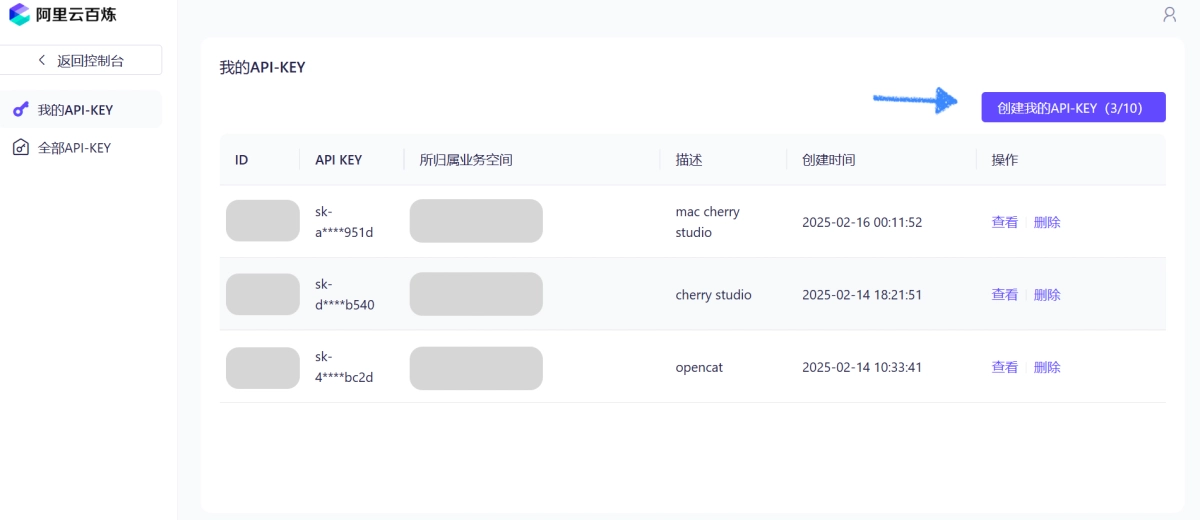
I’ll use Alibaba Cloud Bailian as an example. Open the link above and go to Alibaba Cloud Bailian. If this is your first time logging in, you’ll need to complete real-name verification: https://myaccount.console.aliyun.com/cert-info. After entering the Bailian console, click “Create my API-KEY” in the upper-right corner and generate one. At this point, everything you need should be ready.
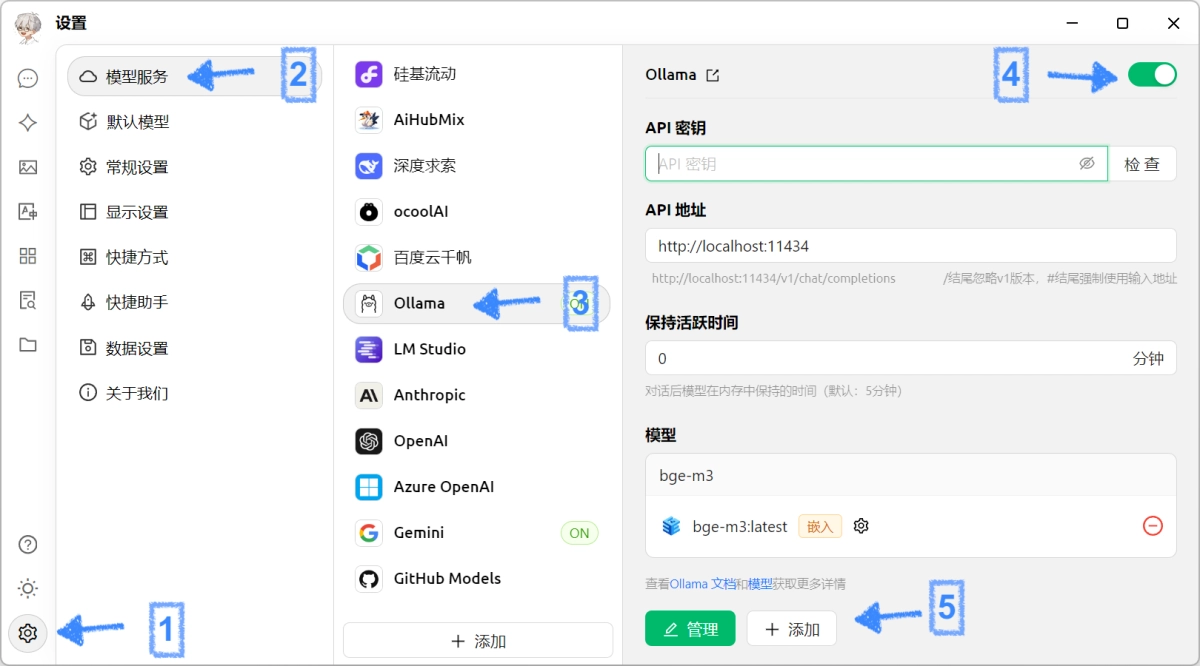
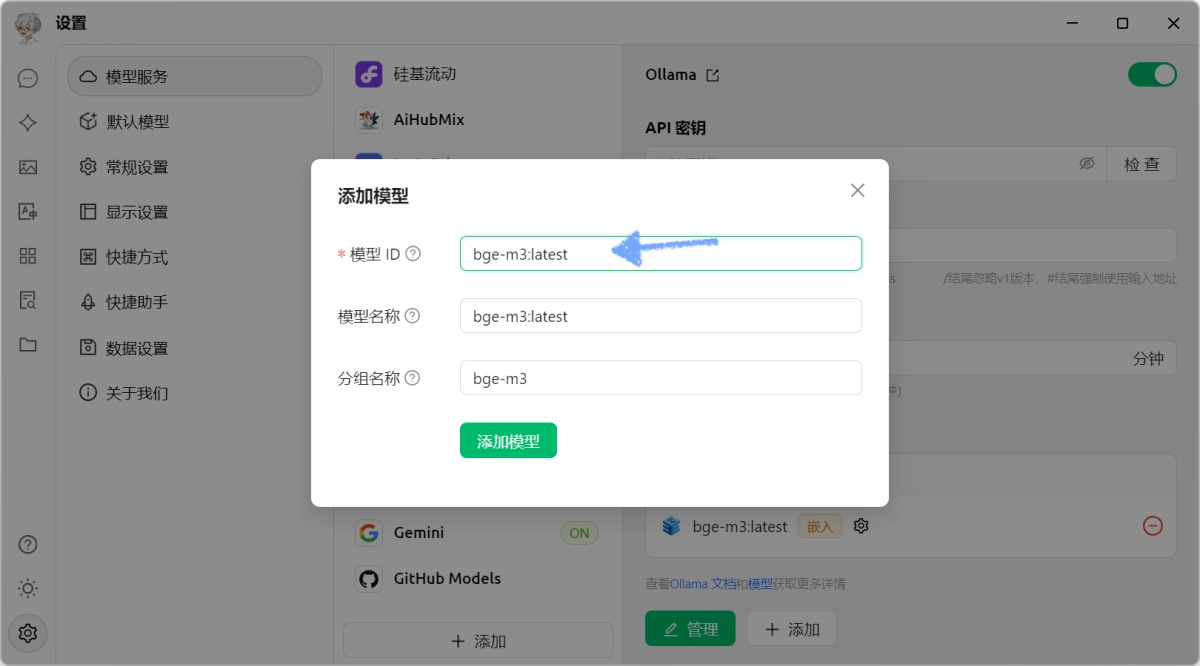
- Now configure the embedding model. Open Cherry Studio, click the Settings icon in the lower-left corner, choose Model Services, select Ollama from the list, and turn on the switch in the upper-right corner. Leave API Key blank. Under Model, click Add, and in the pop-up window enter
bge-m3:latestin the Model ID field.
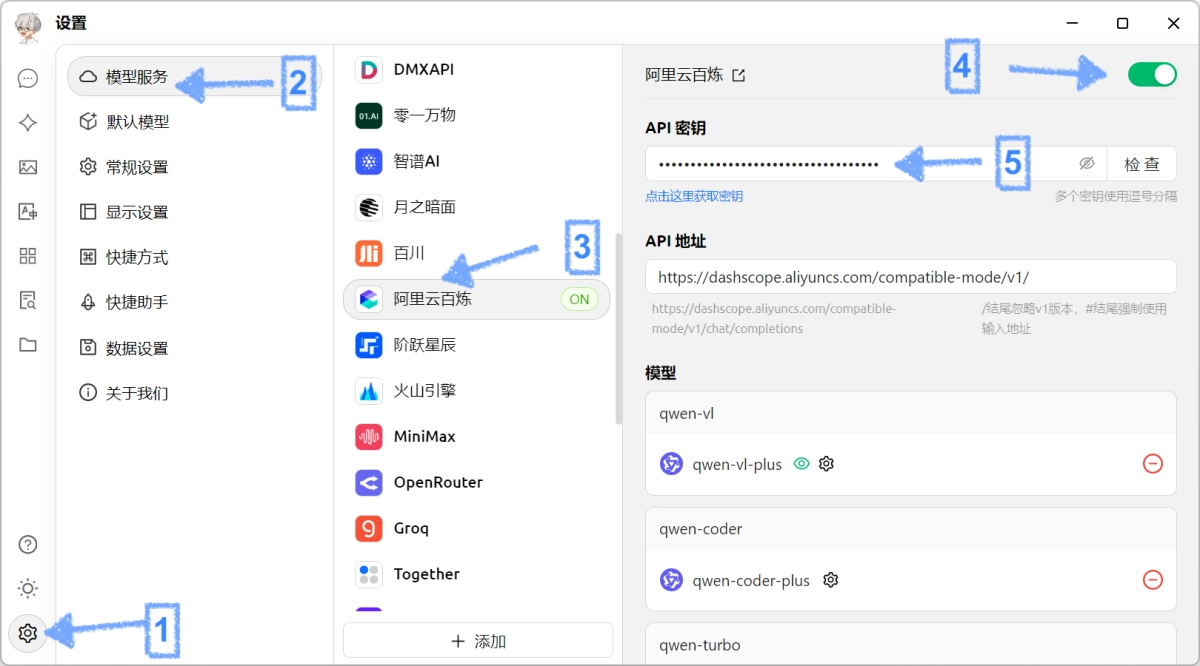
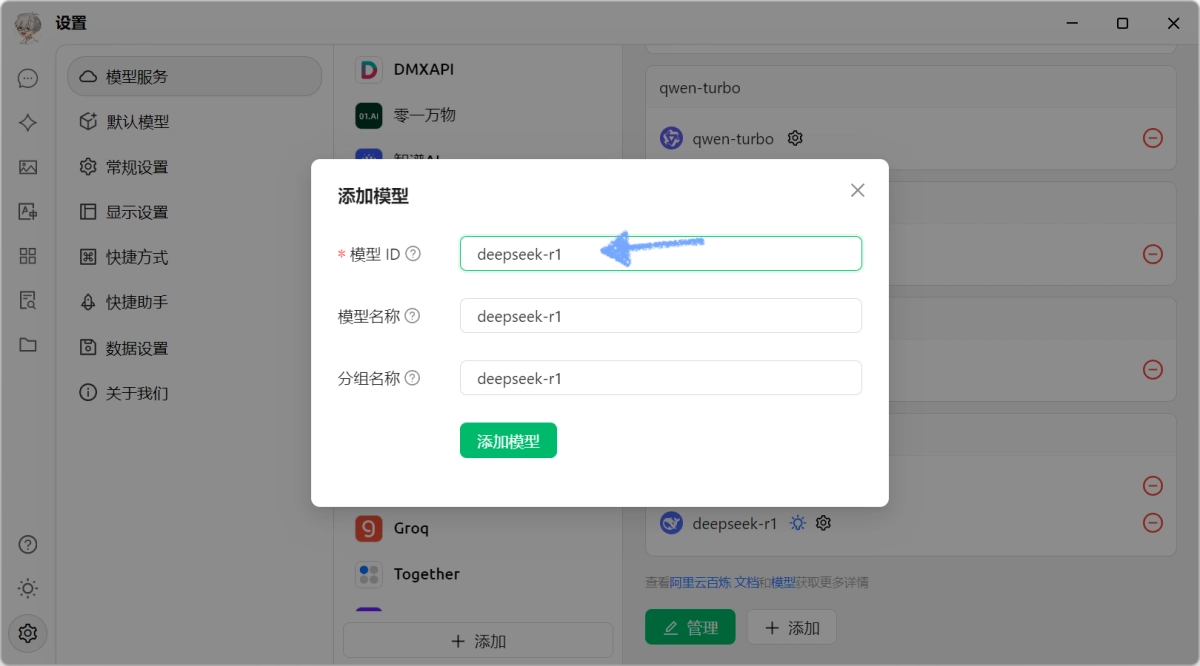
- Next, configure the language model, which in this case is DeepSeek. Again, click the Settings icon in the lower-left corner, go to Model Services, and choose Alibaba Cloud Bailian from the list. Turn on the switch in the upper-right corner, enter the key you applied for in the API Key field, then click Add under Model. In the pop-up window, fill in
deepseek-r1in the Model ID field. If needed, you can also add other models here.
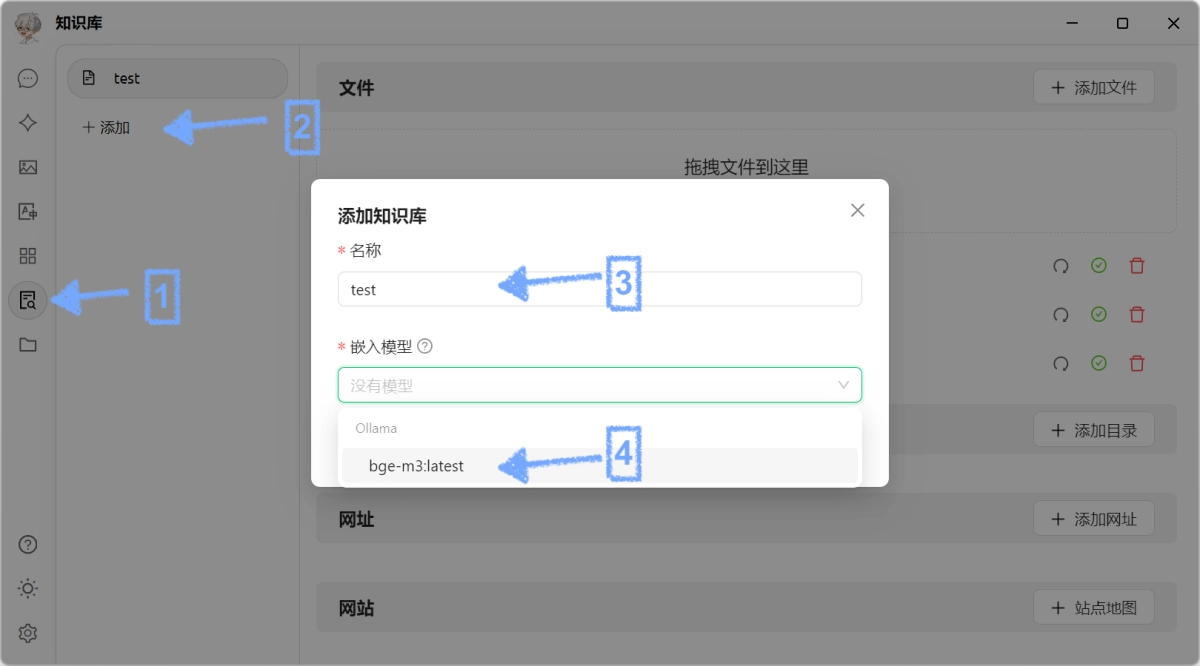
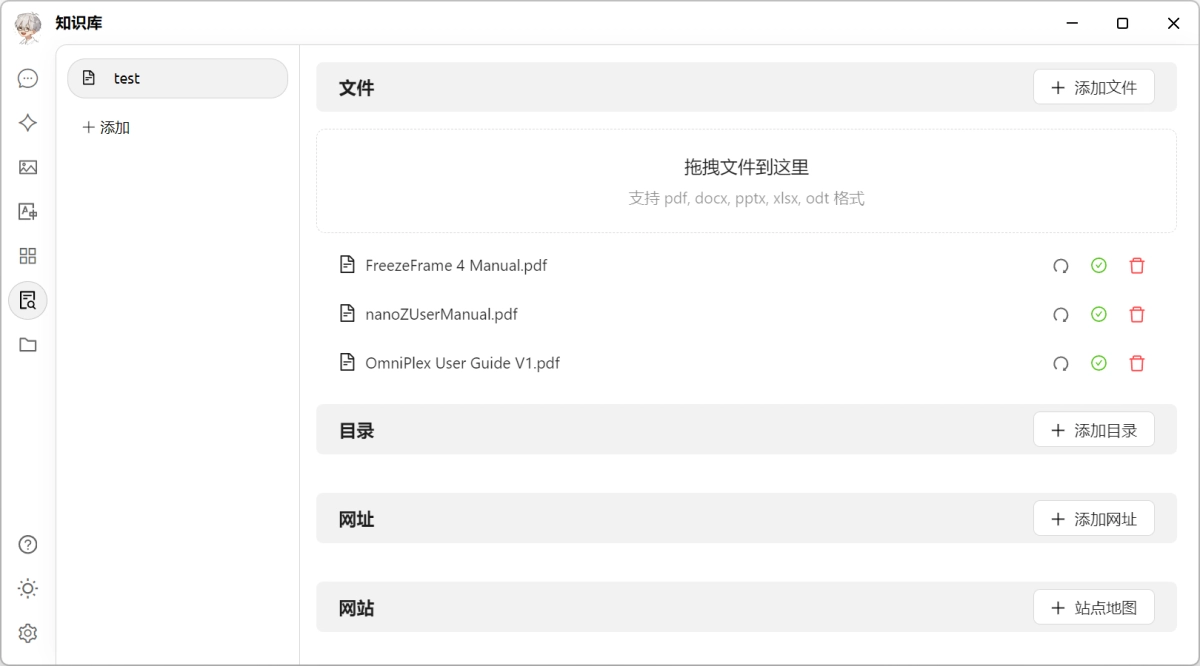
- Now it’s time to set up the knowledge base. Click the Knowledge Base button on the left side of the Cherry Studio window, add a new knowledge base, give it any name you like, and choose
bge-m3:latestas the embedding model.
- All you need to do next is drag in the files you want to include. Once the embedding model finishes preprocessing them, you’ll see a small green checkmark on the right side of the file.
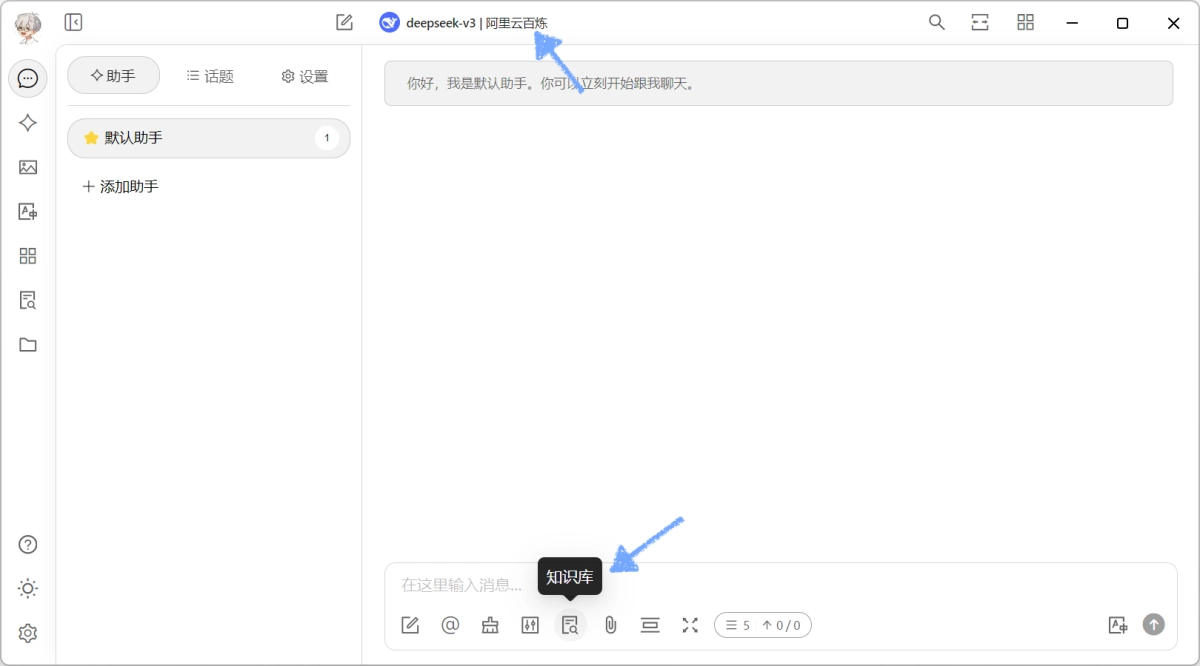
- Finally, create a chat and make sure the Knowledge Base option is checked. Then you can start using your own knowledge base. Don’t forget to choose the language model you want to use at the top of the chat window.
A quick closing thought
I still remember when ChatGPT first came out and the internet was full of doubt. A lot of people dismissed it as something that just stitched together canned phrases, or joked that it was an “advanced repeater.” But in only two or three years, AI has evolved at a pace that honestly feels shocking: real-time web search, smarter coding assistants, and now major progress in deep research features. These advances haven’t just made everyday office work more efficient; in some cases, they’ve also started replacing parts of traditional jobs.
In the middle of this wave, it may be better to spend less time worrying about being replaced and more time learning how to use the new tools. While people around us are talking about DeepSeek, maybe the more important question is this: how do we turn this smart digital assistant into something that genuinely improves our own competitiveness?