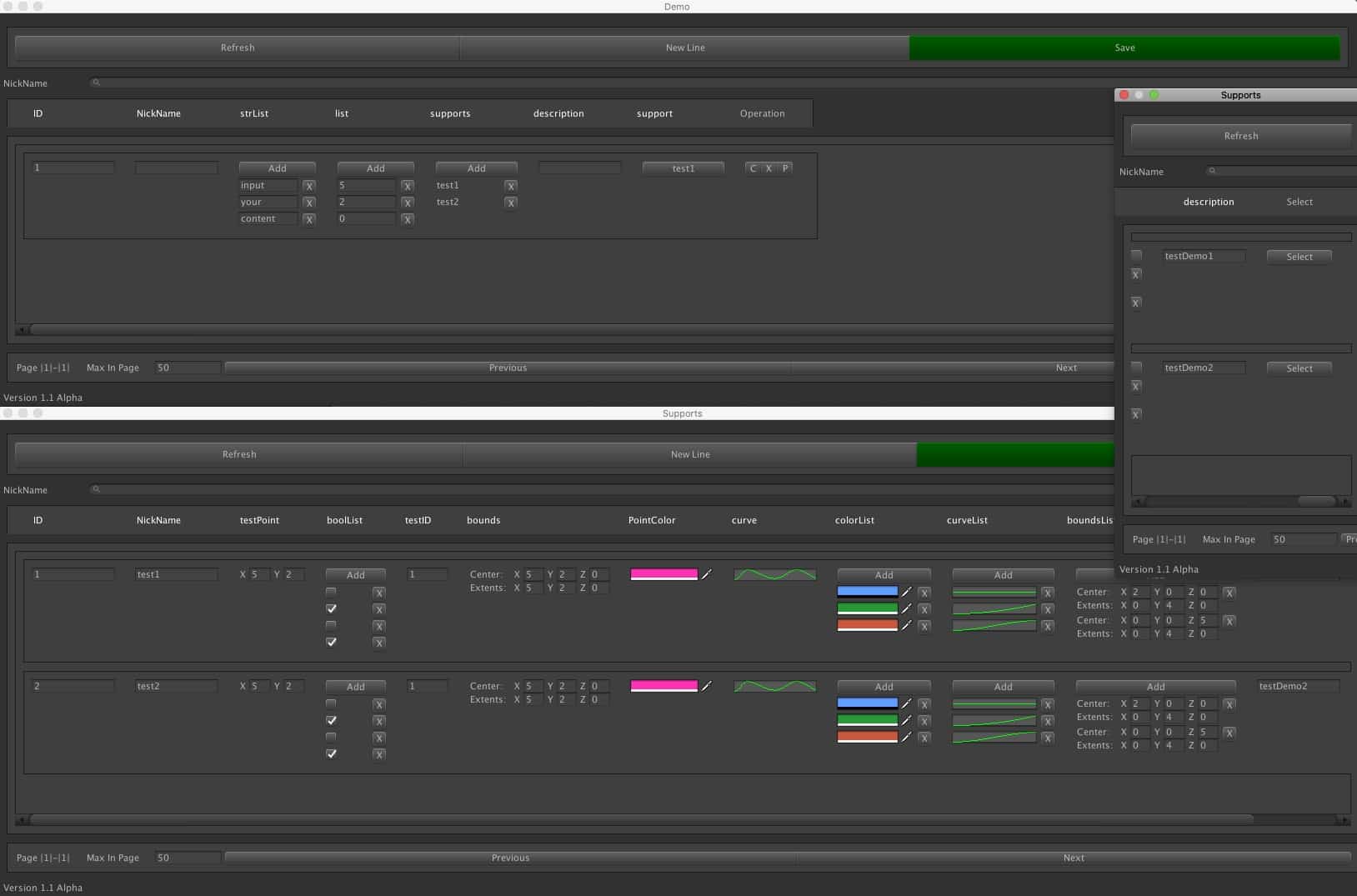
SmartDataViewer is designed to document and simplify the interface details of a data-editing workflow. Its main advantage is speed: once your base data types are defined, a matching visual editor can be generated alongside them, cutting down a large amount of editor development work.
What SmartDataViewer is for
Instead of hand-building custom editors for every configuration structure, SmartDataViewer lets you start from your data definitions and produce an editor from there. The project is meant to reduce repetitive tooling work and keep the editor layer aligned with the underlying types.
Core capabilities
SmartDataViewer provides several practical features:
- Generate editors extremely quickly.
- Link multiple external classes.
- Support sorting and querying for specific fields.
- Import and export data, with built-in UNITY3D JSON support.
- Expose editor events so that nearly all events and component rendering can be customized by the user.
- Control how fields appear in the editor through attributes, including width, display alias, display order, and import/export position.
Basic usage flow
1. Create a container
Two example container types are shown below.
Type 1
[Serializable]
public class DemoConfig : ConfigBase<Demo>
{
}

[Serializable]
public class Demo : IModel
{
    public Demo()
    {
        strList = new List<string>();
        list = new List<int>();
        supports = new List<int>();
        description = string.Empty;
    }
    public List<string> strList;
    public List<int> list;
    [ConfigEditorField(outLinkSubClass: "Supports")]
    public List<int> supports;
    public string description;
    [ConfigEditorField(outLinkSubClass: "Supports")]
    public int support;
}
Type 2
[Serializable]
public class SupportsConfig : ConfigBase<Supports>
{
}

[Serializable]
public class Supports : IModel
{
    public Supports()
    {
        boolList = new List<bool>();
        description = string.Empty;
        colorList = new List<Color>();
        curveList = new List<AnimationCurve>();
        curve = new AnimationCurve();
        bounds = new Bounds();
        boundsList = new List<Bounds>();
    }
    public Vector2 testPoint;
    public List<bool> boolList;
    public int testID;
    public Bounds bounds;
    public Color PointColor;
    public AnimationCurve curve;
    public List<Color> colorList;
    public List<AnimationCurve> curveList;
    public List<Bounds> boundsList;
    public string description;
}
2. Add attributes
SmartDataViewer relies on attributes to define how containers and fields behave inside the generated editor.
ConfigEditorAttribute
This is the container-level attribute.
/// <summary>
/// Initializes a new instance of the <see cref="T:SmartDataViewer.ConfigEditorAttribute"/> class.
/// </summary>
/// <param name="editor_title">当前编辑器显示的名词</param>
/// <param name="load_path">当前编辑器数据文件的位置</param>
/// <param name="output_path">编辑文件导出路径</param>
/// <param name="disableSearch">是否禁用搜索栏</param>
/// <param name="disableSave">是否禁用保存按钮</param>
/// <param name="disableCreate">是否禁用添加按钮</param>
It controls the editor title, where the editor loads data from, the export path for edited files, and whether search, save, or create functions are disabled.
ConfigEditorFieldAttribute
This is the field-level attribute.
/// <summary>
/// Initializes a new instance of the <see cref="T:SmartDataViewer.ConfigEditorFieldAttribute"/> class.
/// </summary>
/// <param name="order">编辑器字段显示顺序</param>
/// <param name="can_editor">If set to <c>true</c> can editor.</param>
/// <param name="display">编辑器中显示别名 不填为字段名</param>
/// <param name="width">编辑器中显示的字段宽度</param>
/// <param name="outLinkEditor">外联到新的编辑器</param>
/// <param name="outLinkSubClass">外联到新的子类型,如果遵循编辑器默认命名规则 只需要填写此项即可</param>
/// <param name="outLinkClass">外联到新的类型</param>
/// <param name="visibility">是否在编辑器中隐藏此字段</param>
/// <param name="outLinkDisplay">将显示外联数据的别名 默认显示外联数据的NickName如果没有则显示ID</param>
/// <param name="outLinkFilePath">外联数据的文件位置</param>
With this attribute, you can define field order, whether a field is editable, the display name used in the editor, column width, external links to another editor or type, visibility, how linked data should be labeled, and the file path used for linked data.
A notable point is outLinkSubClass: if the editor follows the default naming convention, filling in this value alone is enough to link to the related subtype.
3. Generate the editor
After the types and attributes are ready, click the Build button. SmartDataViewer will generate the data editor at the specified output path.
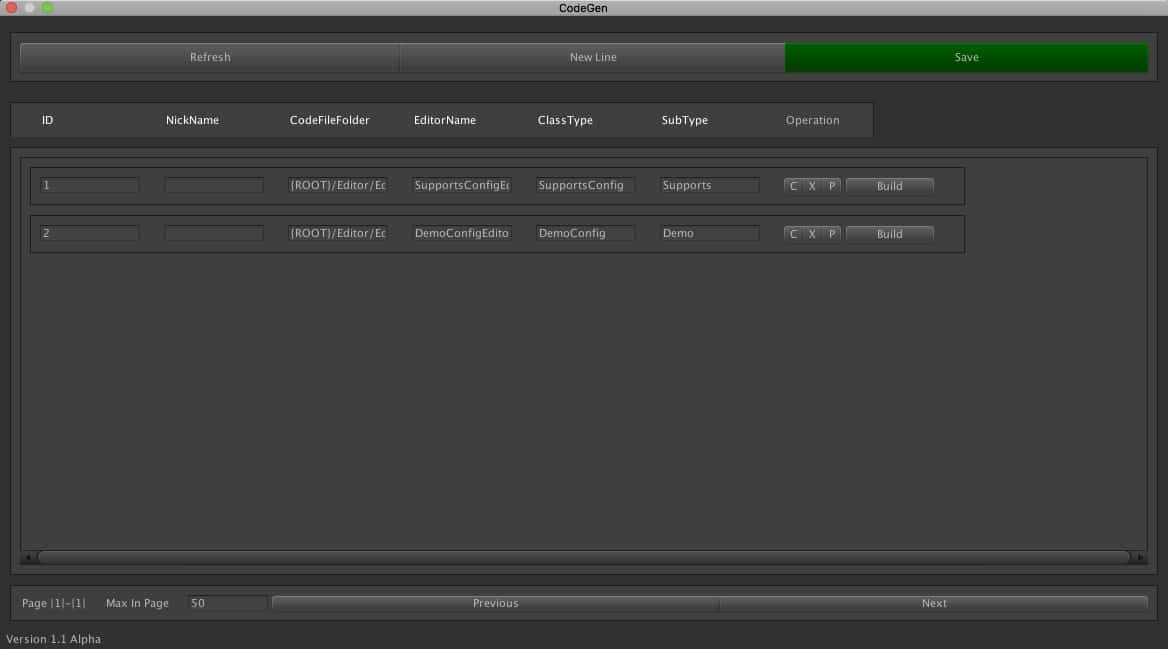
Once generation is complete, the editor is ready to use.